Before you begin
Choose one small outcome for your first project. A short visual with one subject and one clear action is easier to evaluate than a crowded scene with several characters, camera moves, and changes of location.
- Decide whether you want a text-to-video or image-to-video workflow.
- Prepare a reference image if the tool you choose accepts one.
- Write down the details that must remain visible, such as a product shape or character color.
- Set an attempt limit so your first experiment has a clear budget.
Use the official account page. Sign in through create.pika.art. This independent guide never asks for your password or payment details.
Your first Pika AI video: seven steps
- Sign in and open a video tool. Start at Pika’s official site, then choose a video app that matches your goal. Browse Pika Apps if you are unsure where to start.
- Choose your starting input. Use text-to-video when the scene exists mainly in your description. Use image-to-video when a reference image already provides the subject or composition.
- Describe one scene. Include the subject, action, setting, lighting, and visual style. Say what should move and how quickly it should move.
- Review the model and settings. Check duration, output size, model, and the displayed credit cost. Settings can change the result and the amount of your balance used.
- Generate a draft. Treat the first output as information. Ask whether the main subject, action, and mood match your brief before judging small details.
- Change one thing. Simplify the scene, clarify the action, or adjust the camera direction. Changing one variable makes the next result easier to compare.
- Save and review the final file. Watch the complete clip at the size you intend to publish. Check motion, faces, object edges, text, and audio before sharing.
For a visual overview, continue with the Pika AI features and beginner’s guide.
How to write a Pika video prompt
A useful structure is subject + action + setting + camera + style. You do not need to include every detail in the first attempt. Start with the information that affects the shot most.
A small red paper boat floats down a shallow stream in a mossy forest. The camera follows slowly from water level. Soft morning light, gentle movement, cinematic natural color.
The example gives the model a subject, action, location, camera position, and mood. It does not guarantee a particular result; use it as a practice structure.
Prompt details that help
- Subject: name the main object or character and the details that matter.
- Action: use one observable movement, such as turning, walking, opening, or drifting.
- Camera: describe a slow pan, close-up, tracking shot, or gentle push-in.
- Style: add a broad visual direction such as documentary, stop-motion, or soft studio lighting.
Browse Pika video prompt ideas for more starting points.
Use a reference image
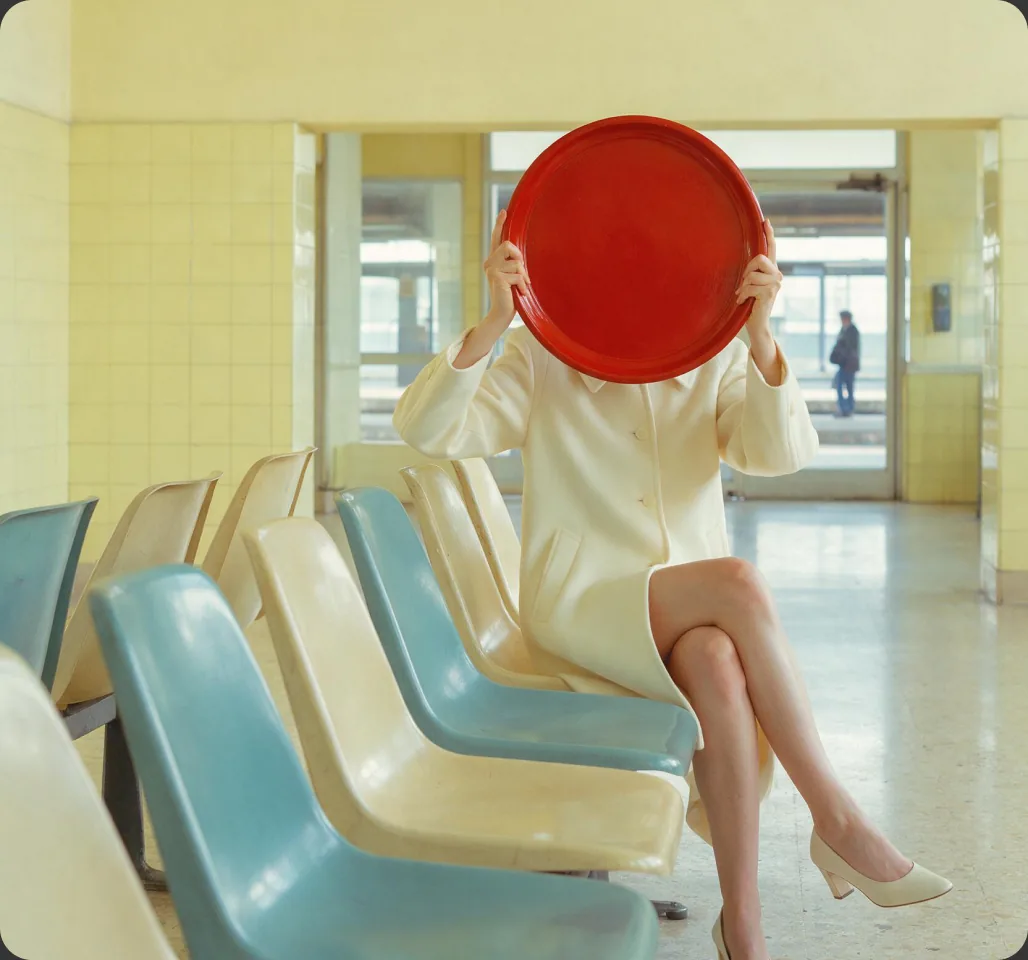
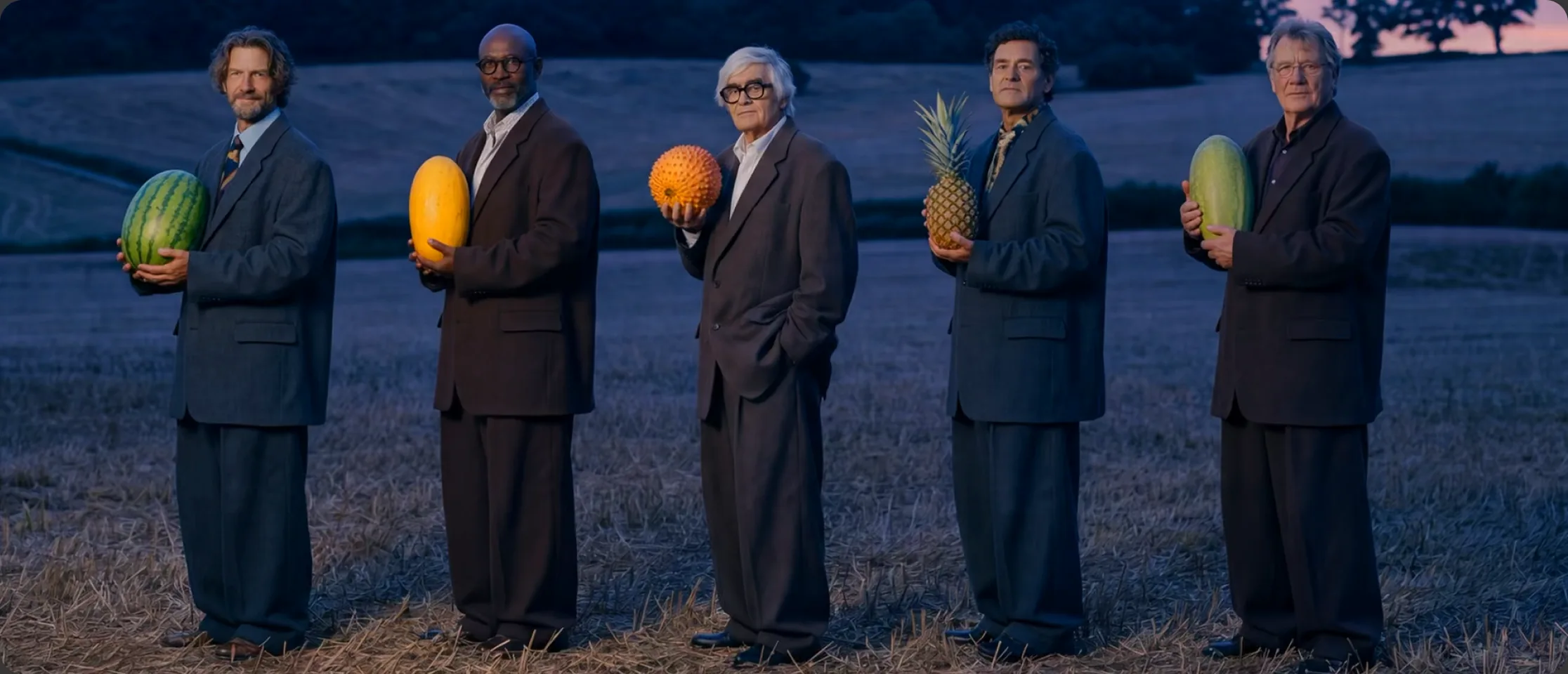
A reference image can establish composition, subject appearance, or color direction before motion is added. Choose an image with a clear focal point and enough space for the movement you want.
Describe the motion separately from the image. For example: “Keep the subject centered while the camera slowly moves closer.” If the reference contains small text, logos, or detailed hands, inspect the generated clip carefully rather than assuming those details will remain exact.
Read the image-to-video guide →How to refine the result
When a draft is close but not useful, identify the first visible problem. Then revise only that part of the instruction.
| If you see | Try changing |
|---|---|
| The action is unclear | Use one simple verb and state what moves first. |
| The camera moves too much | Specify a locked camera or a slow, gentle movement. |
| The scene feels crowded | Remove background objects and keep one main subject. |
| The subject changes shape | Use a clearer reference and reduce simultaneous actions. |
| The mood is wrong | Describe lighting and color more directly. |
Save the prompt and settings with each attempt. This makes it easier to identify which revision improved the clip.
Credits, plans, and settings
Generation costs depend on the model and settings. Review the displayed credit cost before creating, especially when changing duration, resolution, or model.
Pika Create lists Free, Starter, Creator, and Fancy plans. The current Free plan lists zero monthly credits, and one-time top-ups are separate purchases. Top-up credits are for Pika Create and cannot be used with the API.
Read the Pika pricing guide and Free plan guide before purchasing. Prices and offers can change; confirm the current details on Pika’s official pricing page.
Three first-video prompts to try
Product: A matte blue water bottle on a sunlit desk. The camera slowly slides from left to right while a soft shadow moves across the table. Clean product film, neutral background.
Travel: A quiet mountain road at sunrise. Mist drifts between the trees while the camera gently moves forward. Peaceful natural colors, slow cinematic shot.
Character: A paper puppet waves beside a small window as warm afternoon light fills the room. Stop-motion texture, simple background, one gentle hand movement.
These are original practice prompts, not guaranteed recipes. Explore Pika use cases to match a video idea with a project type.
If your first video is not right
- Shorten the prompt and keep one main action.
- Try a stronger reference image with a clear subject.
- Change the camera instruction before changing the whole scene.
- Check whether the selected model supports the output you want.
- Review the complete clip instead of judging only the thumbnail.
For account, generation, or workflow issues, visit the Pika troubleshooting guide.
How to Use Pika AI FAQs
Do I need coding skills to make a Pika video?
No. The creative apps are designed to be used through Pika’s web interface. Coding is relevant when you use a separate API workflow.
Should my first prompt be long?
Start with the subject, one action, setting, camera direction, and style. Add details after you understand the first result.
Can I use an existing image?
Yes, when the selected image-to-video tool accepts a reference. Use an image you have permission to use and explain the movement you want.
How many credits will my first video use?
The cost depends on the model and settings. Check the displayed cost before generating and record the balance used by each attempt.
Can I publish a generated video?
Review the current plan permissions, your source materials, and any required disclosure before publishing. A generated result still needs a quality and rights review.
Make your first clip
Choose one scene, write a focused prompt, and use the first result to decide what to improve next.
Open Pika ↗Next: AI video tools · Prompt ideas · Pricing
Images and product references: Pika. This is an independent guide, not an official Pika page.