What you can make from travel photos
Living photos
A single shot that gently moves: water, sky, leaves, lights. Perfect for sharing a favourite moment.
Trip montages
Several animated photos joined with smooth transitions and music into a 30–60 second recap.
Journey transitions
One place flowing into the next, such as airport to beach or mountain to village, using keyframes.
All of this uses Pika’s Video Studio for animating photos, Pikaframes for transitions between two to five images, plus the finishing apps.
Choosing photos that animate well
| Photo type | Animates well | Watch out for |
|---|---|---|
| Beaches & lakes | Waves, ripples, reflections, palm leaves | Horizon tilting during camera moves |
| Mountains & landscapes | Clouds, mist, grass, light changing | Peaks changing shape if motion is too strong |
| Cities at night | Lights, traffic trails, reflections on wet streets | Signs and text becoming garbled |
| Streets & markets | Awnings, steam, distant people walking | Close-up faces and crowds distorting |
| Landmarks | Sky and light around them, flags, water | Famous shapes warping; keep the landmark still |
| Food & cafés | Steam, pouring drinks, candlelight | Hands and cutlery in the foreground |
Pick sharp photos with one clear subject and some natural motion waiting to happen: water, sky, smoke or light. Crop to the final shape before uploading (vertical for social, widescreen for a trip film). If a photo needs cleaning up first, see image editing.
Animate one travel photo, step by step
- Open Video Studio and sign in through Pika’s login page.
- Attach the photo as a reference and name it, for example “beach”.
- Choose a model, a short duration and the aspect ratio, and check the credit cost the app shows.
- Write a motion prompt from the scene templates below. Name what moves and what stays still.
- Generate and compare with the original photo. If something warps, make the motion gentler.
Pika’s pricing page lists a 720p, 5-second clip at 33 credits on Wan 3.0 and 122 on Seedance 2.5, so a ten-photo montage on Wan 3.0 is roughly 330 credits before retries. For the full technique, read the image-to-video guide.
Motion prompts by scene
These are our own templates. Each one moves the natural elements of the scene and keeps the rest still.
Beach or coast
Animate @beach. Waves roll gently onto the sand, palm leaves sway in a light breeze, sunlight shimmers on the water. Slow push-in. Keep the horizon level and the coastline unchanged.
Mountains
Animate @mountains. Low clouds drift slowly over the ridge, mist moves through the valley, grass ripples in the wind. Camera static. Keep the peaks exactly as in the photo.
City at night
Animate @city. Car light trails move along the streets, windows flicker on, reflections shimmer on the wet road. Slow lateral pan. Keep the buildings unchanged. No new text or signs.
Street or market
Animate @market. Steam rises from food stalls, lanterns sway, people in the distance walk naturally. Gentle handheld camera. Keep the stalls and signs as they are.
Landmark
Animate @landmark. The landmark stays completely still while clouds move across the sky and the light slowly shifts toward sunset. Very slow push-in. Keep its shape exactly as in the photo.
Café or food
Animate @cafe. Steam curls from the coffee cup, candlelight flickers, the street outside blurs softly with passing people. Camera static, warm tones.
Build a trip video from several photos
- Pick 8 to 12 photos that tell the trip in order: arrival, places, food, people, a final sunset.
- Animate each one with a short, gentle motion prompt from above.
- Connect key moments with Pikaframes: use two photos as start and end keyframes and prompt a transition such as “a smooth drone flight from the coast to the old town.”
- Lengthen standout shots with Extend Video.
- Match the look: use one favourite frame as the reference in Color Grade for every clip.
- Add music and titles, then assemble in your editor.
Music, light and finishing touches

Soundtrack and ambience
Add music with Pika Soundtrack or Pika Music, and waves, birds or street noise with Pika SFX.
One consistent look
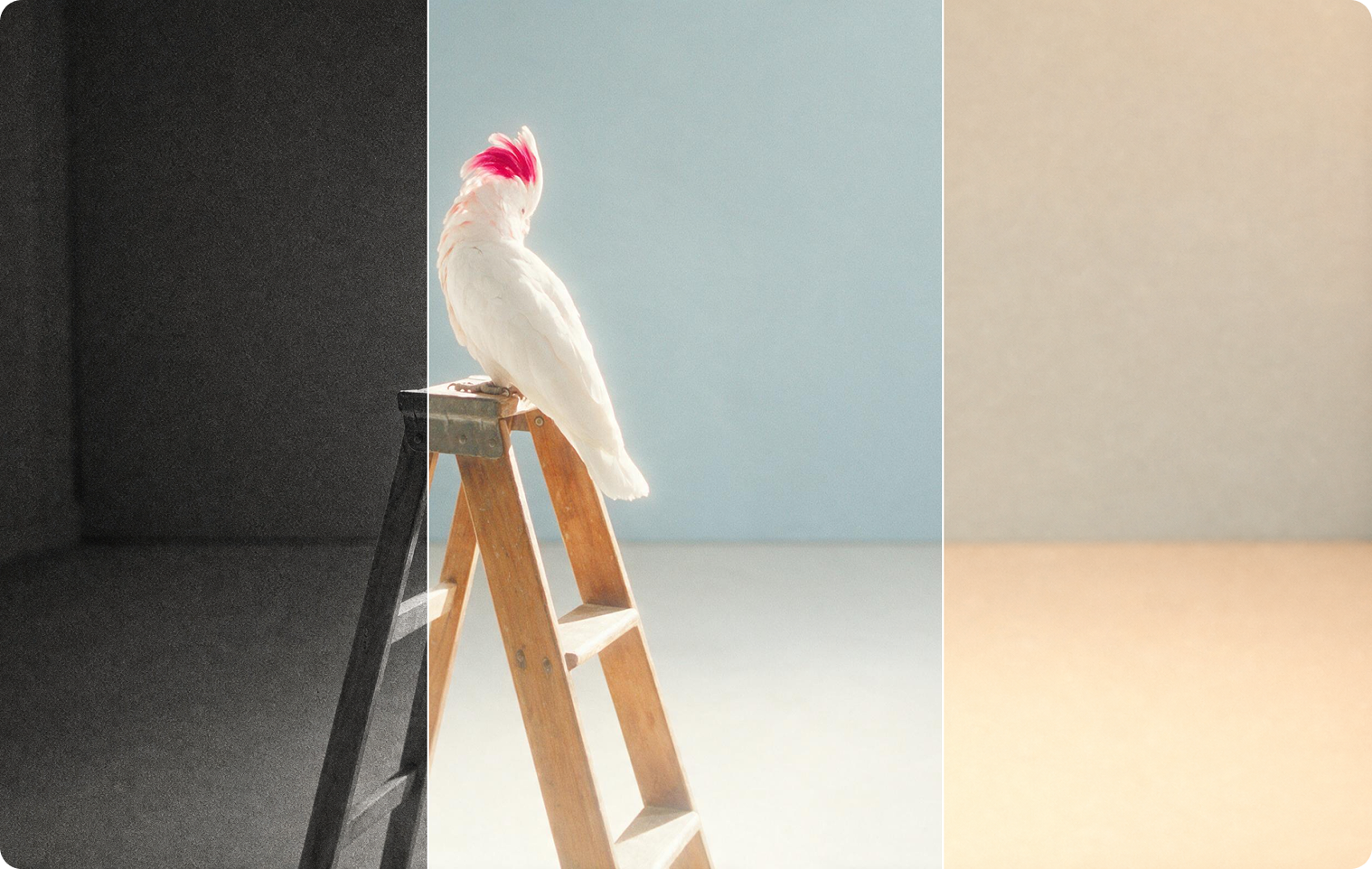
Photos from a phone and a camera, at noon and at dusk, rarely match. Grade them all to one reference, such as “warm golden hour” from the mood recipes.
For a narrated trip diary, add a voiceover with Pika voiceovers. If a photo was taken in flat light, Relight Media can change the lighting before you animate it.
Travel video examples
Each example lists the starting photo, the tools used and what to check. The projects are our own ideas.
Island beach, living photo
Check: the horizon stays level as the waves move.
City lights at dusk
Check: signs don’t turn into garbled text.
Coast to old town
Check: the move between places reads as a flight, not a blend.
60-second trip recap
Check: all clips share one colour look and the music fits the pace.
Poster images: Pika. Example projects and review notes are our own.
Real places and real people
Travel videos show real locations, so a little care keeps them honest and respectful:
- Don’t present AI motion as real footage where it could mislead, for example invented weather at a real place or events that didn’t happen.
- Label it where platforms require. YouTube, for instance, asks creators to disclose realistic AI changes to footage of real places or events; see its disclosure guidance and our Shorts guide.
- Ask before animating people. Get permission from companions and avoid animating recognisable strangers.
- Use your own photos, or ones you have the right to use.
Common problems and fixes
| Problem | Fix |
|---|---|
| Landmark or mountain changes shape | Add “keep [landmark] completely still”; move only sky, water or light |
| Horizon tilts or bends | Use “camera static” or a slow push-in instead of a pan; add “keep the horizon level” |
| Signs and menus become garbled | Add “no new text or signs”; choose photos with less visible text |
| Faces in the crowd distort | Keep people small and in the distance; crop out close strangers |
| Clips don’t match in a montage | Grade every clip with the same reference frame |
| Transition looks like a blur between two photos | Pick photos with similar angles, or prompt a specific camera move |
Travel video FAQs
Can I use photos taken on my phone?
Yes. Sharp, well-lit phone photos work well. Avoid heavily compressed images saved from messaging apps.
How many photos can I join into one video?
Animate as many as you like and join them in an editor. Pikaframes takes two to five images at a time for transitions between them.
Can I animate photos with people in them?
Yes, with their permission. Small, distant figures animate more reliably than close faces.
How much does a travel video cost to make?
It depends on the number of clips and the model. At Pika’s listed prices, a 5-second 720p clip costs 33 credits on Wan 3.0 or 122 on Seedance 2.5. See Pika pricing.
Is this the official Pika website?
No. pikaais.com is an independent informational guide. Generation, accounts and purchases take place on Pika’s official services.
Animate your favourite travel photo
Pick one photo with water, sky or light in it, use the matching scene prompt, and generate a 5-second living photo.
Open Video Studio ↗Next: Image-to-video guide · Pikaframes · All AI video guides
Sources: Pika Video Studio, Pikaframes, Pika pricing and YouTube Help, checked September 24, 2026. Images: Pika. Scene prompts, workflow and tips are our own.