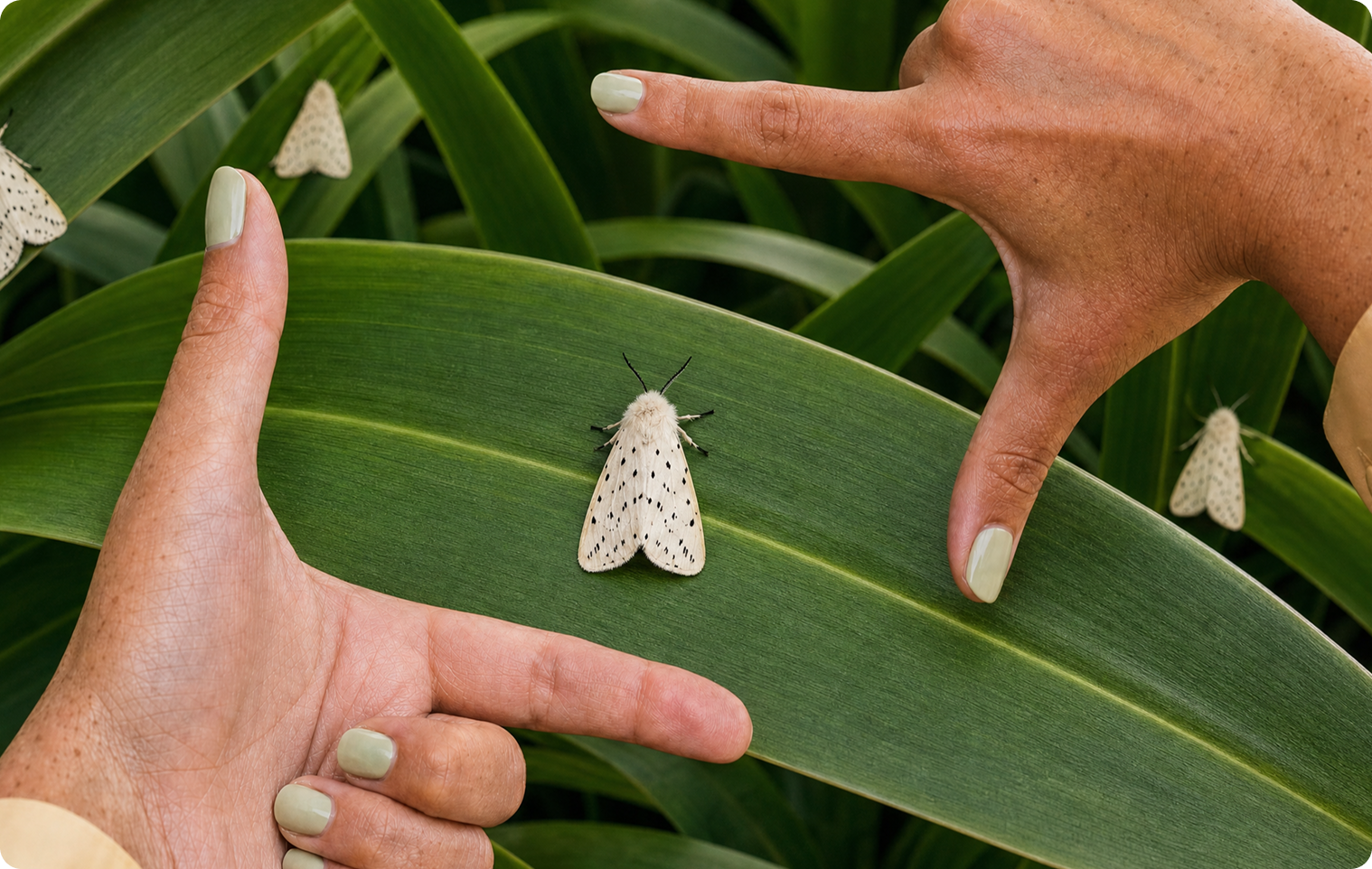
What is GPT Image 2.5?

“GPT Image 2.5 is OpenAI’s state-of-the-art image model. Prompt from scratch, build from multiple image references, or edit an existing visual. Plus, you can export PNGs with transparency.”
Source: Pika’s GPT Image 2.5 page. Model icon: Pika.
In OpenAI’s own documentation, GPT Image 2.5 comes in two versions: Flare, described as “fast, high-quality everyday image generation,” and Sunburst, “our most capable model for image generation and editing,” aimed at workflows where “editing precision” matters. Pika’s page doesn’t say which version or settings it uses, so check the options shown in the app.
Sources: OpenAI API docs for GPT-Image-2.5 Flare and GPT-Image-2.5 Sunburst, checked September 24, 2026.
Three ways to use GPT Image 2.5
Prompt from scratch
Describe the image in words and generate it with no starting picture.
Use for: illustrations, concepts, stills.
Build from references
Attach several images and say how to combine them, using @mentions.
Use for: placing a product in a scene, mixing a subject and a style.
Edit an existing visual
Upload an image and describe what to change.
Use for: swapping skies, backgrounds, objects or colours.
Transparent PNGs: GPT Image 2.5’s stand-out feature
Of the image models on Pika, GPT Image 2.5’s page is the one that mentions exporting PNGs with transparency. A transparent PNG has no background, so you can drop it onto any colour, photo or layout.
Product cut-outs
For ads, banners and store layouts where the background changes.
Logos and icons
Marks that need to sit on light and dark backgrounds.
Stickers
Characters or shapes for messaging, merchandise or social posts.
Design assets
Elements to layer in slides, thumbnails and web pages.
How to ask for it: choose the transparent option in the app if it’s shown, and describe the subject as “isolated, with no background.” Keep the subject whole in the frame so nothing is cut off at the edges.
How to create an image with GPT Image 2.5, step by step
- Open GPT Image 2.5 at create.pika.art/apps/gpt-image-2 and sign in through Pika’s login page.
- Pick your approach: from scratch, from references, or edit an image.
- Attach any references and give each a short name to @mention.
- Write the prompt using the tips below.
- Choose the options shown, such as shape, background and file type.
- Check the credit cost the app shows, then generate.
- Review at full size, especially edges on cut-outs and any text.
- Refine with a follow-up edit rather than starting over.
Pika’s page doesn’t list a price for GPT Image 2.5; see Pika pricing.
Prompt tips for GPT Image 2.5
- Lead with the subject and two or three concrete details.
- Name the light: direction and time of day.
- Pick one style: photographic, flat illustration, 3D render, and so on.
- Say what stays the same when editing or using references: “keep @mug exactly as in the reference.”
- For cut-outs, add “isolated, no background, crisp clean edges.”
- Put any text in quotation marks, keep it short, and check every letter.
For the full prompt structure, see Image Studio: create images step by step.
Example prompts and results
Six prompts covering all three ways to use the model. Each shows the result from one generation, what to check, and one change to try. The prompts are our own.

Product cut-out
A single red enamel coffee mug, three-quarter view, isolated with no background, soft even studio light, crisp clean edges.
What to look for: Clean edges on a transparent background, with no leftover shadow or halo.
Try one change: Place the PNG on a dark background to check the edges.

Sticker-style logo mark
A friendly cartoon lemon character with a leaf on top, thick outline, flat bright colours, sticker style, isolated with no background.
What to look for: A clean silhouette that works on light and dark backgrounds.
Try one change: Ask for “white border around the outline” for a die-cut sticker look.

Combine two references
Place @mug on @table in morning light from the left, with a small plant beside it. Keep @mug’s colour and logo exactly as in the reference. Photographic.
What to look for: The mug from one reference sits naturally on the table from the other, with matching light.
Try one change: Swap @table for a different setting and keep the rest of the prompt.

Edit an existing photo
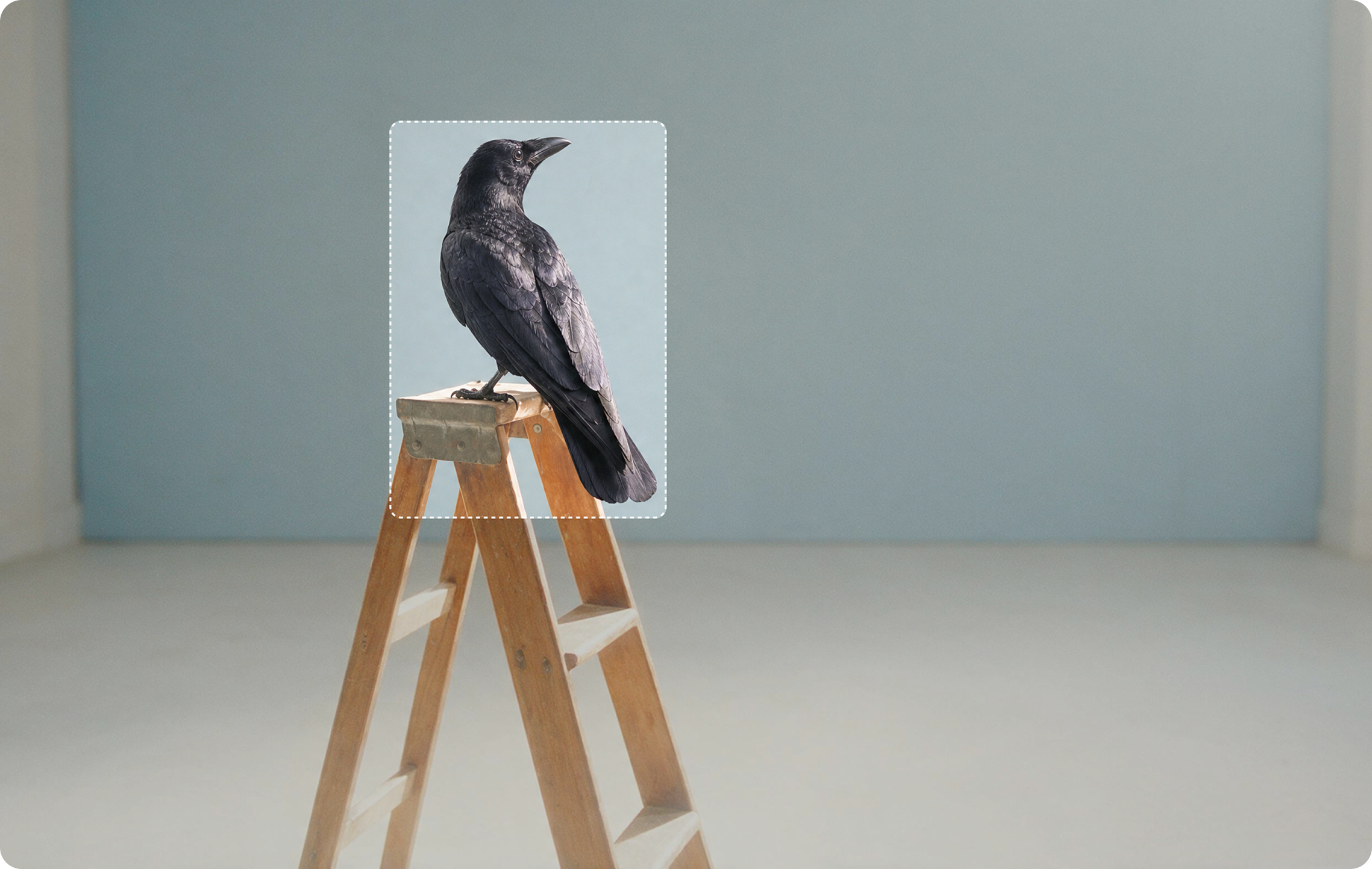
Replace the grey sky with a warm sunset sky. Keep the buildings, people and everything else exactly the same.
What to look for: Only the sky changes; edges around rooftops stay clean.
Try one change: Try “light snowfall” instead of a sunset to test a weather change.

Editorial illustration
An editorial illustration of a person watering a small tree growing out of a laptop, flat shapes, muted green and cream palette, generous empty space at the top for a headline.
What to look for: A clear idea with space left for text, in one consistent style.
Try one change: Change the palette to “bold orange and navy” for a different brand feel.

Photoreal still life
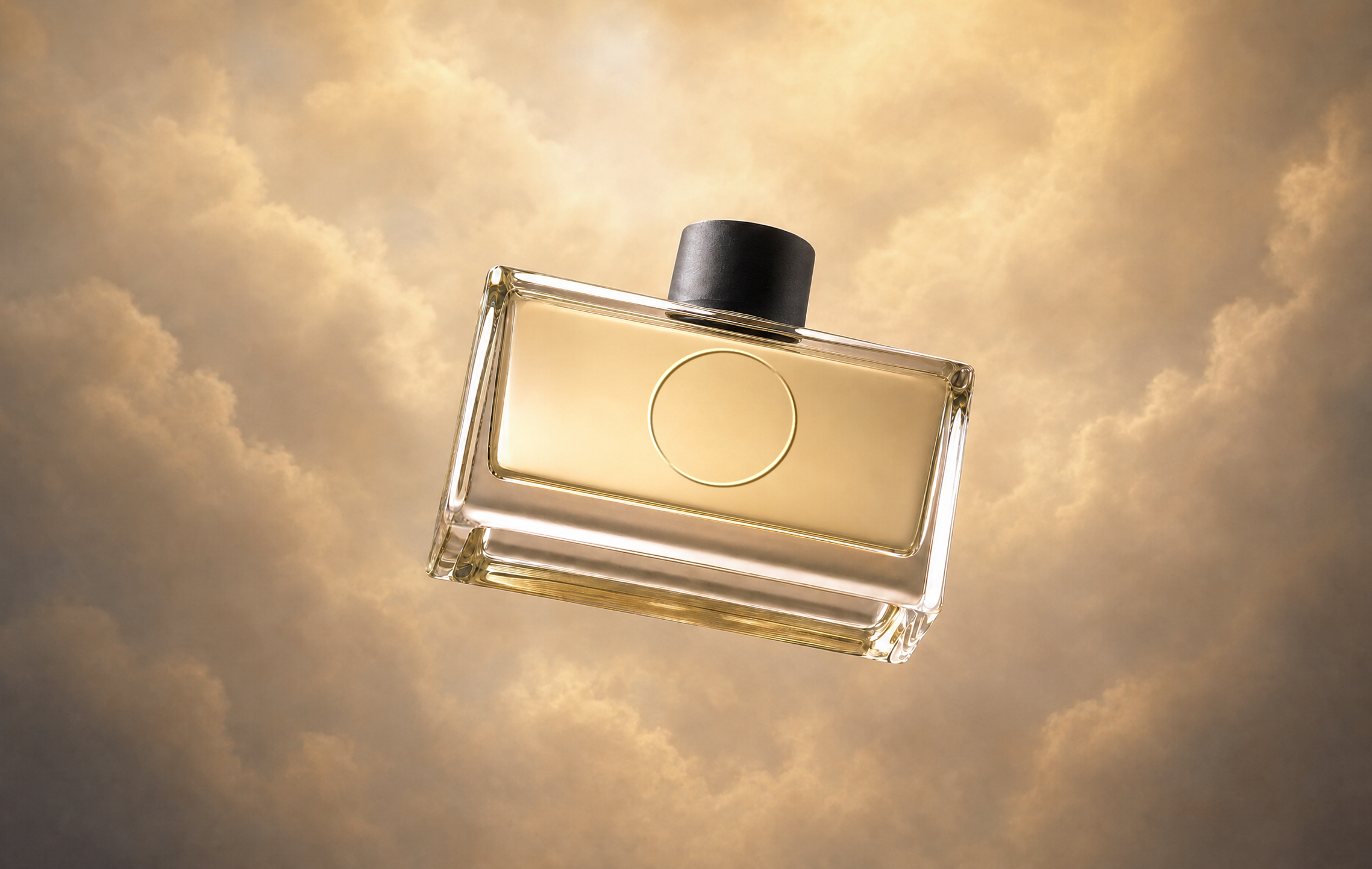
A glass bottle of cold-pressed orange juice on a pale stone surface, centred, with a slice of orange beside it. Bright, soft studio light from above. Clean commercial photo.
What to look for: Believable glass, juice colour and shadows.
Try one change: Run the same prompt on Nano Banana and compare.
Animate the results
GPT Image 2.5 stills make good starting frames for video in Pika. These clips show a few of the examples above brought to life.
Juice bottle, light sweep
Animate @bottle. Soft light sweeps across the glass and condensation forms. Slow push-in. Keep the bottle exactly as in the image.
Lemon mascot, little wave
Animate @lemon. The character waves and bounces gently. Camera static. Keep the flat sticker style and colours.
Mug cut-out to product ad
Brief: a red enamel mug for campers. Message: tough and cosy. Morning campfire scene, steam rising, slow orbit. Keep the mug’s colour exactly.
Editorial illustration, living
Animate @illustration. Water pours from the can and the tree grows a new leaf. Camera static. Keep the flat illustration style.
Motion prompts are our own. Techniques: image-to-video guide and product ads.
Related Pika tools
When to use another model
| If you need… | Consider |
|---|---|
| A transparent background | GPT Image 2.5 |
| Photo-real images, or short text that must read cleanly | Nano Banana (“photo-real visuals… sharp, legible type”) |
| Infographics or text in several languages | Seedream 5 |
| Six options per prompt | Seedream 4 |
| An image you’ll animate with speech | Grok Imagine |
Full comparison: Pika image models.
Common problems and fixes
| Problem | Fix |
|---|---|
| Cut-out has a halo or leftover shadow | Add “no shadow, crisp clean edges”; check it on a dark background |
| Background still appears | Choose the transparent option if shown and say “isolated, no background” |
| Reference product changed | @mention it and add “keep … exactly as in the reference” |
| Edit changed too much | Add “keep everything else exactly the same” |
| Text is misspelled | Shorten it, put it in quotes, or add text later in a design tool |
GPT Image 2.5 FAQs
Is GPT Image 2.5 made by Pika?
No. Pika describes it as “OpenAI’s state-of-the-art image model.” Pika offers it inside its app alongside other image models.
Can GPT Image 2.5 make transparent backgrounds?
Yes. Pika’s page says “you can export PNGs with transparency.”
Can I edit my own photos with it?
Yes. Pika lists editing an existing visual as one of its uses. Use images you have the right to edit.
Is it Flare or Sunburst in Pika?
Pika’s page doesn’t say. OpenAI offers both versions; check the options shown in the Pika app.
Can I use the images commercially?
Pika’s pricing page lists a commercial license on the Creator and Fancy plans. Check the current terms before using images in paid work.
Is this the official Pika or OpenAI website?
No. pikaais.com is an independent informational guide, not affiliated with Pika or OpenAI.
Make one transparent cut-out
Copy prompt 01, generate it with a transparent background, and drop the PNG onto a coloured background to check the edges.
Open GPT Image 2.5 ↗Next: Image models · Image prompts · AI image hub
Sources: Pika GPT Image 2.5, OpenAI API docs for Flare and Sunburst, Nano Banana, Edit Image and Pika pricing, checked September 24, 2026. Images and icon: Pika. Prompts and tips are our own. Not affiliated with OpenAI.