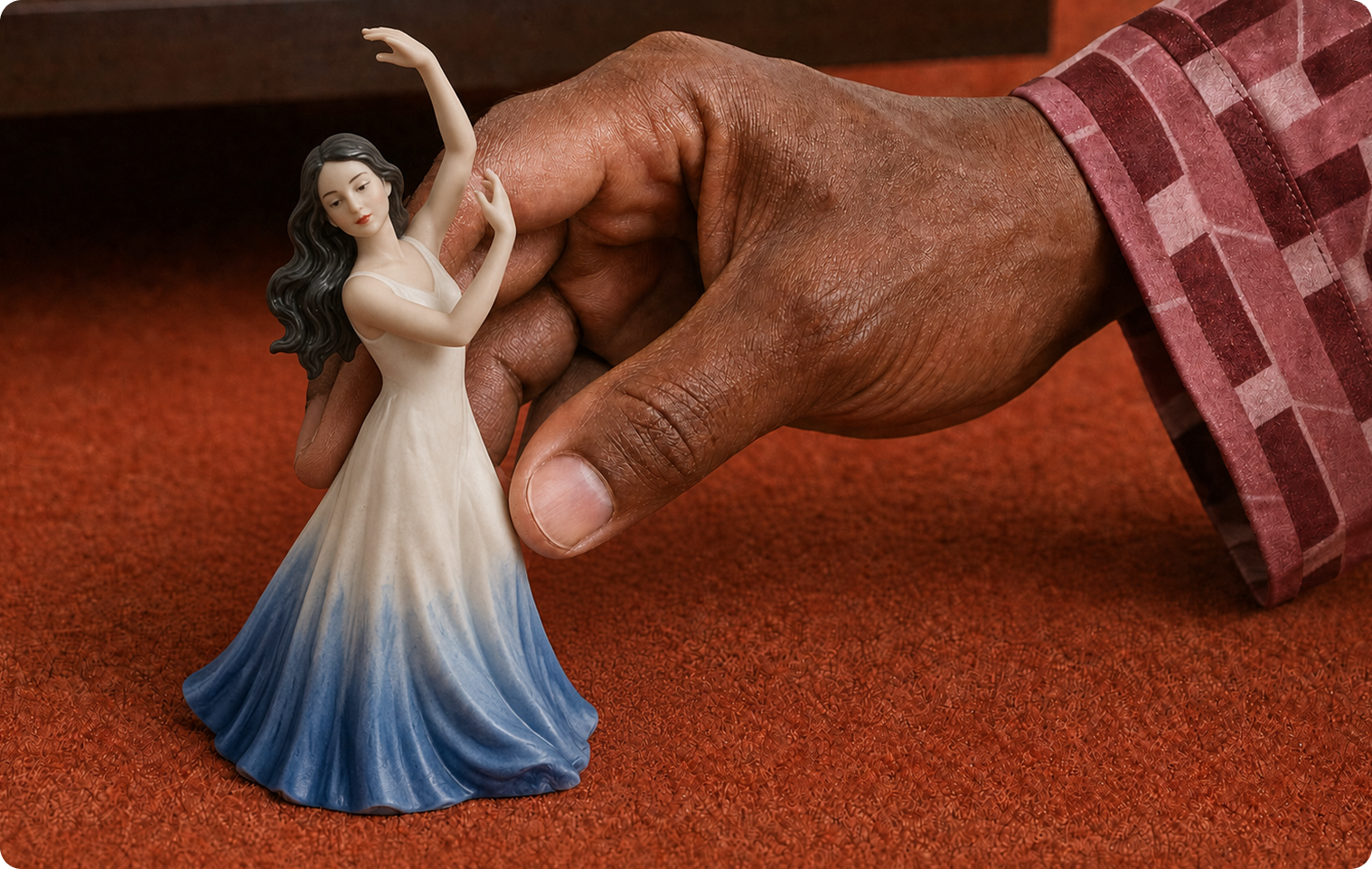
What is Pika Character Studio?
Pika’s app page puts it simply: “Design a consistent character once, then summon them to star in any of your creations.” You build a character “from traits, reference image, or description” and get “a character sheet that can be used in other apps to carry your character across outputs.” On the Pika homepage it’s described as a way to “customize a character who can be repeatedly used in your creations.”
Consistency is one of the hardest things in AI video and image work. A character sheet gives every later generation the same reference to follow, rather than relying on a text description alone.
Three ways to build a character
From traits
Choose characteristics such as look, age, hair and clothing.
Best for: quickly assembling an original character.
From a reference image
Start from a photo or drawing of the character.
Best for: a mascot, an illustration, or yourself.
From a description
Write who the character is and what they look like.
Best for: story characters you’ve already imagined.
The three methods are listed on Pika’s app page; the exact options inside each may change. Check the app.
How to build a character, step by step
- Open Character Studio. Go to create.pika.art/apps/character-creator and sign in through Pika’s login page.
- Choose how to start: traits, a reference image, or a description.
- Add the details using the description template or photo tips below.
- Give the character a short, unique name so it’s easy to find and @mention later.
- Check the credit cost the app shows, then generate the character sheet.
- Review the sheet: is the face distinctive, the outfit clear, the style right? Regenerate or adjust before you use it anywhere.
- Use it in another app, such as Video Studio or Image Studio, and check it still looks the same.
Pika’s app page doesn’t list a price for Character Studio. See Pika pricing.
Describing a character well
Whether you use traits or a written description, specific details give the model something to hold on to. Vague characters drift.
Example description: Mira, a woman in her early thirties, tall and slim, with freckles, short copper curls and green eyes. She always wears a mustard-yellow raincoat, a grey knitted scarf and brown boots. Curious and warm. Photographic style.
Tip: give the character one or two distinctive features, like the mustard raincoat, that make them instantly recognisable in a wide shot. The example is our own.
Reference photo tips
- Face the camera, with the face fully visible and in focus.
- Use even lighting: no harsh shadows across the face.
- Keep the background plain so it isn’t mistaken for part of the character.
- Show the outfit if clothing is part of the character.
- No sunglasses, hats or hands over the face, unless they’re part of the look.
- Use a photo you have permission to use; see consent and rights.
Need to clean up a photo first? Use Edit Image to remove clutter or change the background.
Using your character in other Pika apps
Pika says the character sheet “can be used in other apps to carry your character across outputs.” In practice, that means attaching it as a reference and naming it in the prompt. Places it’s useful:
| App | What you can do |
|---|---|
| Image Studio | Put the character in new scenes, poses and outfits |
| Video Studio | Attach and @mention the character in video prompts |
| Short Film | Cast the character as your lead across a multi-shot story |
| Product Ad | Use the character as a spokesperson or brand mascot |
| Motion Transfer | Make the character perform a recorded dance or move |
| Shorts and Reels | Run a recurring series with the same host |
Example video prompt: @Mira walks along a rainy harbour at dusk, holding an umbrella, looking out to sea. Slow tracking shot, warm lamp light, cinematic. Keep @Mira exactly as in the reference, including the mustard raincoat.
How references are attached differs by app; check each app’s interface. The example prompt is our own.
Keeping a character consistent
Always attach the sheet
Don’t rely on the name alone. Attach the character reference to every generation.
Reuse the same wording
Copy the same one-line description into every prompt, word for word.
Add a “keep” line
“Keep @name’s face, hair and outfit exactly as in the reference.”
Stick to one style and model
Switching models or styles mid-project changes the look. Keep them fixed per project.
Wide shots and fast motion are where characters slip most. Use medium shots and gentler action for key moments; for more, see improve video quality.
Character ideas to try
Starting points for original characters. These are our own.
| Use | Character |
|---|---|
| Brand mascot | A round, friendly teapot with small arms and a painted smile, glossy ceramic |
| Series host | A retired astronaut in his seventies with a white beard and a faded orange flight jacket |
| Story lead | A teenage inventor with goggles on her head and a tool belt, in a paper-cutout style |
| Explainer guide | A small robot with a round screen face showing simple expressions, pastel colours |
| Product spokesperson | A cheerful gardener in her forties with a straw hat and green overalls |
Consent and rights
- Real people need consent. Only build characters from photos of yourself or people who have agreed.
- Don’t impersonate. Don’t make characters of real people to mislead others or put words in their mouth.
- Avoid existing characters. Don’t recreate copyrighted or trademarked characters you don’t own; design original ones.
- Check your plan for commercial use. Pika’s pricing page lists a commercial license on the Creator and Fancy plans.
- Disclose where required. Platforms such as YouTube ask for disclosure of realistic AI content; see our Shorts guide.
Common problems and fixes
| Problem | Fix |
|---|---|
| Character looks generic | Add one or two distinctive features: a signature item, colour or hairstyle |
| Face changes between scenes | Attach the sheet every time and add a “keep … exactly” line |
| Outfit changes | Describe the outfit in every prompt, or ask for it explicitly |
| Style drifts | Use the same style words and model for the whole project |
| Photo-based character doesn’t look like the photo | Use a sharper, front-facing, evenly lit photo with a plain background |
| Character breaks in action scenes | Slower action, medium shots, or Motion Transfer from a recorded move |
Character Studio FAQs
What is a character sheet?
A saved reference for your character. Pika says it “can be used in other apps to carry your character across outputs,” so the same character appears consistently.
Can I make a character from my own photo?
Yes. Pika lists a reference image as one way to build a character. Use a clear, front-facing photo.
Can I make a cartoon or stylised character?
Yes. Describe the style you want, or start from a drawing as the reference image.
Is Character Studio the same as Character Creator?
Pika’s homepage calls the app Character Studio, and it lives at the “character-creator” address in the app. They refer to the same tool.
Is this the official Pika website?
No. pikaais.com is an independent informational guide. Generation, accounts and purchases take place on Pika’s official services.
Create your first character
Write a six-part description with one signature feature, build the character sheet, then place the character in two different scenes to check it stays the same.
Open Character Studio ↗Next: Short films · Image Studio · AI image hub
Sources: Pika Character Studio, Pika and Pika pricing, checked September 24, 2026. Images: Pika. Description template, ideas and tips are our own.