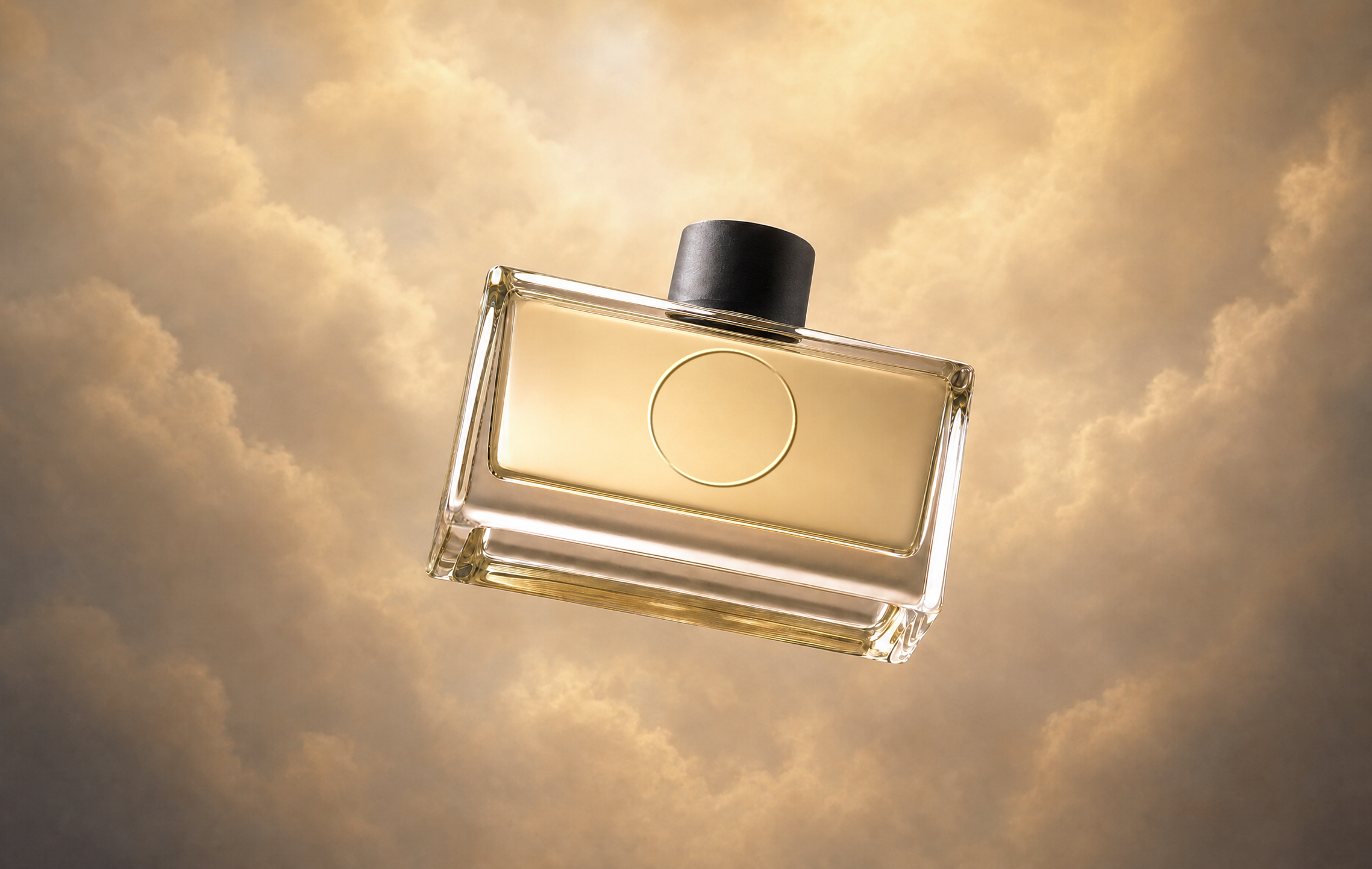
What Pika Product Shot does
Pika’s homepage describes Product Shot as a way to “create styled images of your product without a photoshoot.” The app page goes further: it promises “an entire shoot’s worth of professional images, without hiring a photographer,” taking “any product image you provide—even something shot on your phone” and giving it “studio-grade lighting, styling, and finish.”
Pika’s app page doesn’t list the style options, output sizes or price; those are shown in the app. See Pika pricing for plans and credits.
Preparing your product photo
The input photo doesn’t need to be professional, but the product must be clear. Anything the photo gets wrong about the product can carry into every result.
| Do | Why |
|---|---|
| Shoot near a window in daylight, no flash | Soft, even light shows true colour and texture |
| Use a plain background (a sheet of paper or a wall) | The product separates cleanly from the background |
| Fill most of the frame, but don’t crop the product | More detail, nothing cut off |
| Face the label toward the camera | Text and logos are clearer to begin with |
| Tap to focus and hold the phone steady | Sharp edges and readable labels |
| Clean the product first | Dust and fingerprints can survive styling |
| Take several angles: front, three-quarter, back, detail | More options for different shot types |
How to create product shots, step by step
- Take or choose a product photo using the checklist above.
- Open Product Shot. Go to create.pika.art/apps/product-shot and sign in through Pika’s login page.
- Upload the photo.
- Choose a style from the options the app offers, matching the shot type you need (see below).
- Check the credit cost shown, then generate.
- Compare every result with the real product: shape, colour, label, size and details.
- Refine the best result with Edit Image, Relight Media or Upscale.
- Export at the size your store or ad platform needs.
The product shot types a store needs
A strong product page mixes clean, informative shots with a few lifestyle images. Plan the set before you start generating.
| Shot type | What it shows | Pika route |
|---|---|---|
| Packshot | The product alone on a plain background | Product Shot; Edit Image to set a plain background |
| Cut-out | The product with no background, for layouts and ads | GPT Image 2.5, which lists PNG export with transparency |
| Lifestyle | The product in use or in a real setting | Product Shot, or Image Studio with the product as a reference |
| Flat lay | Top-down arrangement with props | Image Studio with the product as a reference |
| Detail | Close-up of texture, stitching or finish | Start from a real close-up photo; Upscale for sharpness |
| Mood / hero | A dramatic, brand-style image for banners | Product Shot, then Relight (Spotlight or Hard Flash) |
Lifestyle prompts to adapt
For lifestyle and flat-lay images in Image Studio, attach the product photo as a reference and @mention it. These prompts are our own.
Kitchen
@product on a light oak kitchen counter beside a bowl of lemons, morning light from a window on the left, soft shadows. Photographic, clean and bright. Keep @product’s shape, colour and label exactly as in the reference.
Bathroom and skincare
@product on a wet stone shelf in a calm spa bathroom, eucalyptus leaves beside it, soft diffused light, pale neutral tones. Close-up, shallow depth of field. Keep @product exactly as in the reference.
Flat lay
Top-down flat lay of @product centred on a linen cloth with a notebook, a pen and a coffee cup, evenly spaced. Soft daylight, minimal, neutral colours. Keep @product exactly as in the reference.
Outdoor
@product resting on a rock beside a mountain trail at golden hour, pine trees softly blurred behind. Warm natural light, photographic. Keep @product exactly as in the reference.
Other Pika tools for product images
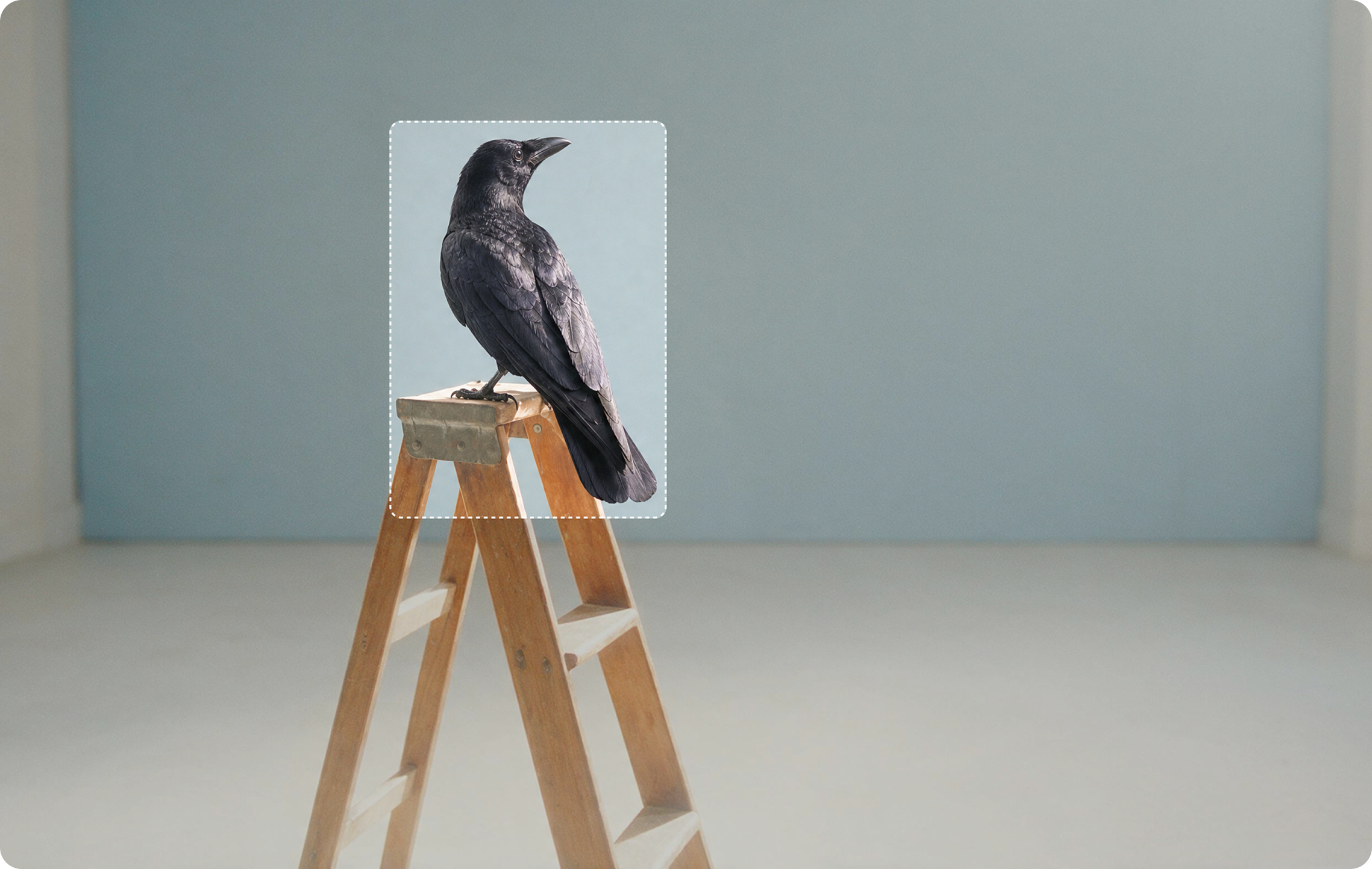
Edit Image
Change the background, remove a stray object, or expand the frame to a new shape. You can pin up to five spots and say what each becomes. Image editing guide.
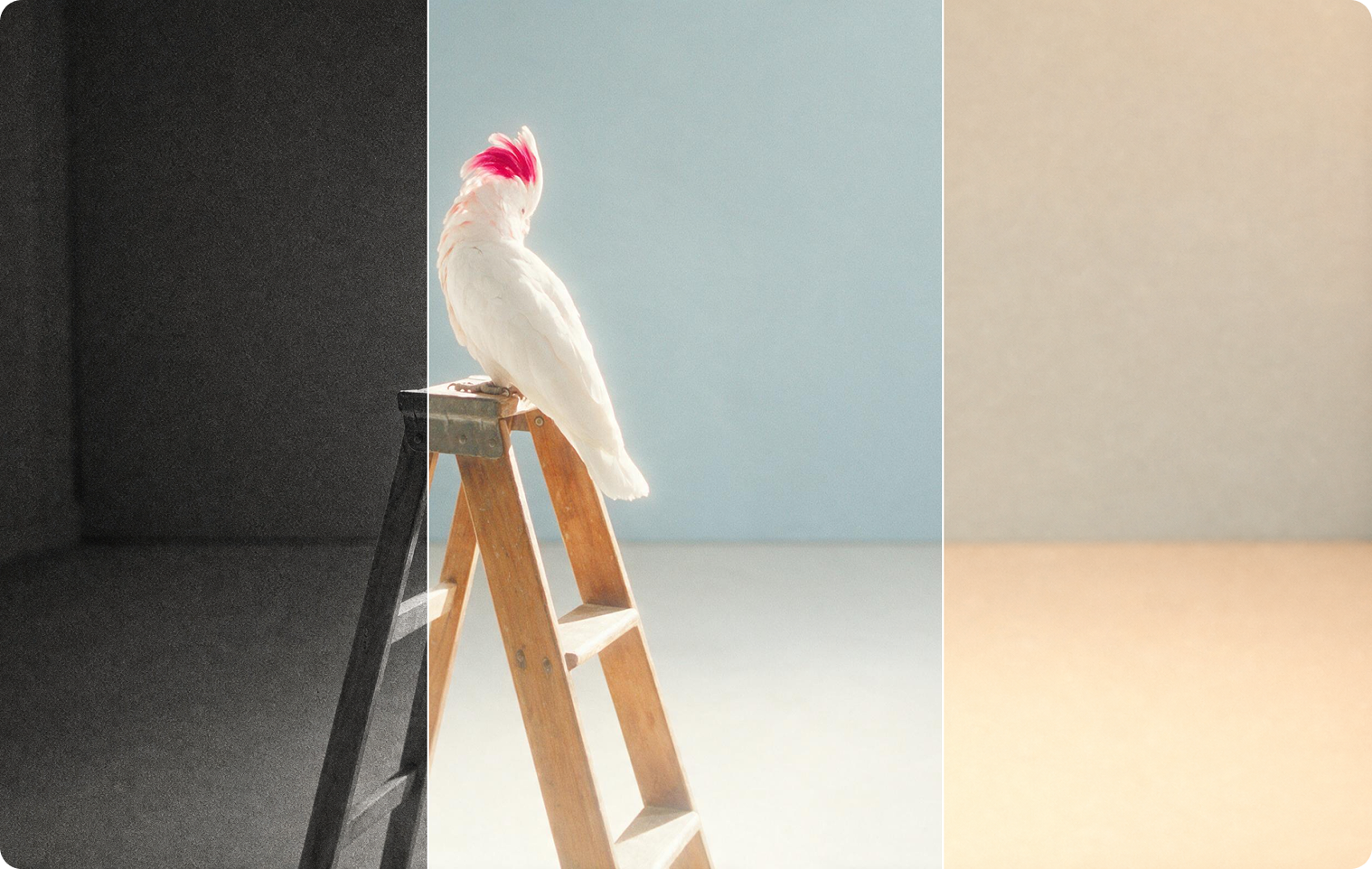
Relight and grade
Relight Media presets include Softbox, Hard Flash, Spotlight, Window and Golden Hour. Color Grade adjusts colour and mood; tell it to keep the product colour exact.
For the final images, Upscale makes files larger and sharper for zoomable product pages.
Stores, marketplaces and social
| Destination | Typical needs |
|---|---|
| Your own online store | Consistent packshots across products, plus lifestyle images for the page |
| Marketplaces | Many set strict main-image rules, often a plain white background and no added text; check each one’s current requirements |
| Social posts | Square or 4:5 lifestyle and mood images |
| Stories, Reels, Shorts | Vertical 9:16 images, or animate them into video |
| Ads and banners | Cut-outs and hero images with space for headline text |
Keep a consistent look across the range: the same style choice, light direction and background for every product in a collection.
Keeping product images accurate
AI styling can make a product look great, but customers expect to receive what they saw. Before publishing, check every image against the real item:
Must match the real product
- Colour and finish
- Shape, size and proportions
- Labels, logos and text
- What’s included in the box
Fine to style
- Background and setting
- Lighting and shadows
- Props, clearly separate from the product
- Overall mood and colour grade of the scene
Advertising and marketplace rules vary by country and platform; this is general guidance, not legal advice. For commercial use, Pika’s pricing page lists a commercial license on the Creator and Fancy plans.
From product photo to product video
A finished product shot is a strong starting frame for video. Use it with Pika’s Product Ad app, which turns a product image and a brief into a video, or animate it yourself with image-to-video. For a before-and-after reveal, use two images as keyframes in Pikaframes.
Common problems and fixes
| Problem | Fix |
|---|---|
| Label or logo is blurred or wrong | Retake the photo with the label facing the camera and in focus |
| Product colour changed | Try another style, or correct it with Edit Image or Color Grade (“keep product colour exact”) |
| Product looks the wrong size in a scene | Describe scale: “a small 50 ml jar beside a coffee cup” |
| Edges look cut out or haloed | Use a cleaner input photo with a plain background; ask for matching shadows |
| Range doesn’t look consistent | Use the same style, light and background for every product |
| Image too small for zoom | Upscale the final image |
Product photography FAQs
Can I really use a phone photo?
Yes. Pika says Product Shot works from “any product image you provide—even something shot on your phone.” A sharp, well-lit photo gives the best results.
Can I get a transparent background?
Pika’s GPT Image 2.5 page lists exporting PNGs with transparency, which is useful for cut-outs in layouts and ads.
Can I use these images on marketplaces?
Often, but many marketplaces have strict rules for main images. Check each marketplace’s current requirements, and make sure images represent the product accurately.
Can I use Pika product images commercially?
Pika’s pricing page lists a commercial license on the Creator and Fancy plans. Check the current terms before selling with them.
Is this the official Pika website?
No. pikaais.com is an independent informational guide. Generation, accounts and purchases take place on Pika’s official services.
Shoot one product, make a full set
Take one clear phone photo by a window, run it through Product Shot, then make a packshot, a lifestyle image and a hero image from it.
Open Product Shot ↗Next: Product ads · Image editing · AI image hub
Sources: Pika Product Shot, Pika, Edit Image, Relight Media, GPT Image 2.5 and Pika pricing, checked September 24, 2026. Images: Pika. Checklists, shot plans and prompts are our own.