How Pika text-to-video works
With text-to-video there is no starting image: the prompt has to carry everything. It describes what the scene looks like, what happens in it, and how it is filmed. The model you choose turns that description into moving frames, and in Pika’s Video Studio the result can range “from a short clip to a 3-minute multi-shot masterpiece—sound included.”
For a compact reference on settings and prompt structure, see text-to-video prompts, settings & examples. New to the app? Start with create your first video.
The prompt builder: six parts of a strong prompt
Write the parts in this order. The fixed elements come first so the model knows what the scene is before it reads what changes.
Assembled prompt: A grey tabby cat with a red collar on a sunny kitchen windowsill, soft morning light from the right. The cat stretches, then curls up to sleep. Slow push-in. 35mm film look, warm and calm, no text.
Two to four sentences is usually enough. One subject, one action and one camera move per 5-second clip will give far more reliable results than a paragraph of competing ideas.
Camera moves to use in prompts
Naming one camera move is the quickest way to make a clip feel directed. Use the plain phrases below.
| Write | What it does | Good for |
|---|---|---|
| Camera static | Locked-off frame; only the scene moves | Products, portraits, testing a new prompt |
| Slow push-in | Moves gently toward the subject | Reveals, emphasis, emotional moments |
| Pull back | Moves away to reveal the surroundings | Endings, showing scale |
| Lateral tracking shot | Slides sideways alongside the scene | Landscapes, walking subjects |
| Slow orbit | Circles around the subject | Products, sculptures, hero shots |
| Handheld | Slight natural shake | Documentary, tense or intimate scenes |
| Drone rising / gliding | Aerial movement above the scene | Cities, coastlines, travel |
Styles and looks
Style words set the visual rules. Pick one clear direction rather than combining several that pull against each other.
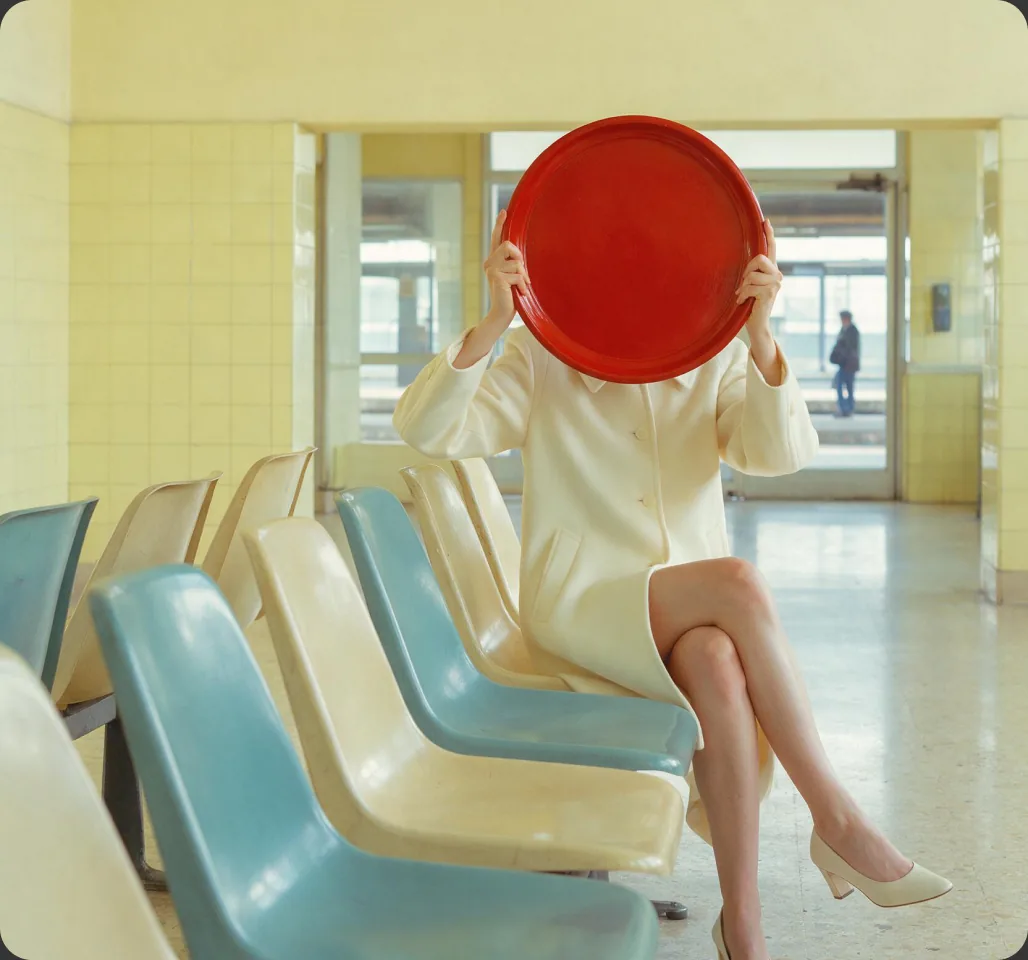
Commercial and clean
“Bright studio light, clean background, crisp detail, minimal.” For products and ads; see product ads.

Cinematic
“35mm film look, shallow depth of field, moody lighting, film grain.” For story and atmosphere; see short films.
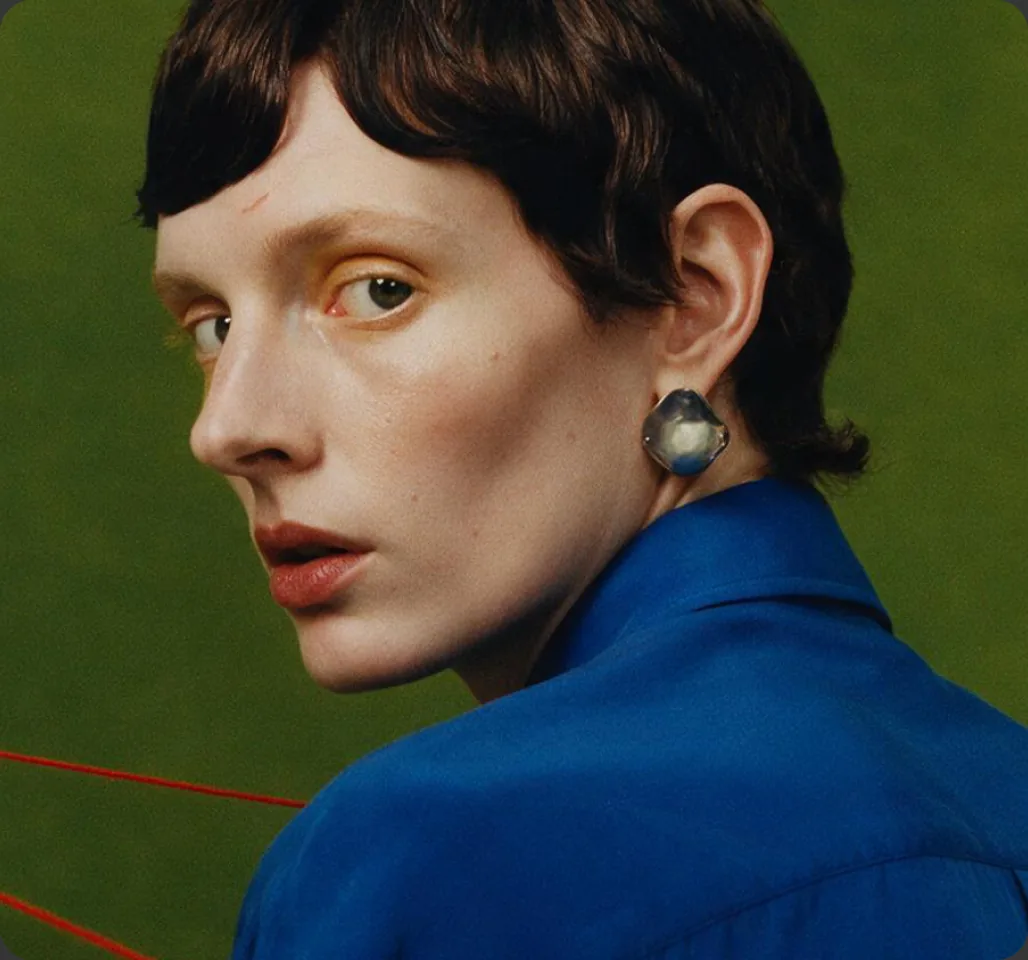
Social and punchy
“Vivid colours, bold contrast, dynamic, vertical frame.” For Reels and Shorts.
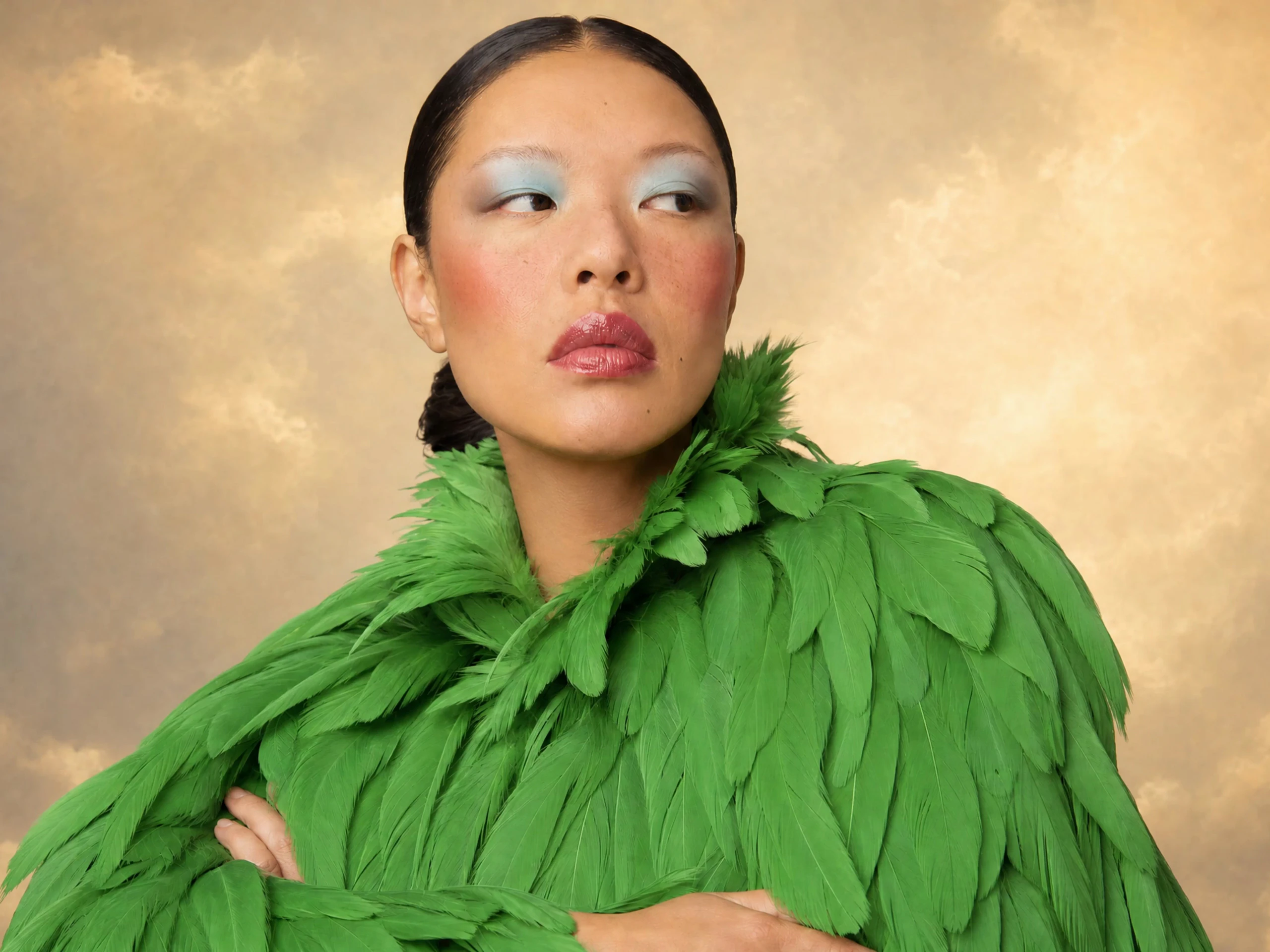
Stylised and animated
“Claymation,” “paper cutout,” “watercolour,” “pixel art,” “low-poly 3D.” Name the material or technique so the model has a rule to follow.
Text-to-video examples
Each example lists the prompt, the settings and what to check. The prompts are our own; results vary between attempts and models.
Product reveal
A matte black wireless earbud case on pale concrete, soft studio light from the top left. The lid opens slowly to reveal the earbuds. Camera static, then a gentle push-in. Clean, minimal, no text.
Check: the case keeps its shape while the lid moves.
City at blue hour
A drone slowly rises above a city at blue hour, streets lit up, car light trails moving along the avenues. Cinematic, cool tones.
Check: buildings stay straight as the camera rises.
Character moment
A woman in her thirties by a rainy window, soft grey light on her face. She turns slowly toward the camera and smiles slightly. Medium close-up, camera static, shallow depth of field.
Check: the face stays consistent through the turn.
Stylised world
A paper-cutout style forest at night, layered card textures, a small fox walks between the trees while fireflies blink. Side-scrolling camera, gentle parallax, muted greens and deep navy.
Check: the cutout texture survives the motion.
Poster images: Pika. Prompts and review notes are our own. More ideas: 50 Pika prompts to test.
A credit-smart text-to-video workflow
- Write the prompt with the builder above and save it in a notes file.
- Draft on a low-cost model at the shortest duration to check the idea.
- Change one part per attempt: subject, light, action, camera or style.
- Re-run the best prompt on a higher-quality model once it works.
- Finish only the keeper: extend, upscale, grade and add sound.
Need more control? If text alone keeps missing the look, switch to image-to-video with a starting frame, or Pikaframes with a start and end image.
Models and credit costs
Video Studio lists Pika 2.5, Seedance 2.5, MiniMax H3, Wan 3.0 and Google Omni Flash. Pika’s pricing page publishes these example costs:
| Model | Listed cost | Clips from 900 credits (Starter) |
|---|---|---|
| Wan 3.0 | 33 credits · 720p, 5s | About 27 |
| Seedance 2.5 | 122 credits · 720p, 5s | About 7 |
| Pika 2.5, MiniMax H3, Google Omni Flash | Shown in app | Depends on settings |
Source: Pika pricing, checked September 24, 2026. Compare models in the video models guide.
Common problems and fixes
| Problem | Fix |
|---|---|
| Parts of the prompt are ignored | Shorten it and move the most important detail into the first sentence |
| Subject morphs halfway through | Slow the action and shorten the clip |
| Camera wanders aimlessly | Name one move from the camera table, or write “camera static” |
| Style feels muddled | Keep one style direction and remove conflicting words |
| Garbled text or logos | Add “no text” and overlay titles in an editor afterwards |
More help: troubleshooting guide.
Pika text-to-video FAQs
Do I need any images to use Pika text-to-video?
No. Leave the references empty in Video Studio and describe the scene in the prompt.
Is Pika text-to-video free?
Pika’s Free plan lists zero monthly credits, so you need a credit pack or a paid plan. See is Pika AI free?
How long can a text-to-video clip be?
Pika describes Video Studio output as ranging up to a 3-minute multi-shot piece. Available durations depend on the model; start with short clips.
Does Pika add sound?
Video Studio can include sound, depending on the model. You can also add music and effects with Pika’s audio tools.
Is this the official Pika website?
No. pikaais.com is an independent informational guide. Generation, accounts and purchases take place on Pika’s official services.
Build one prompt and test it
Fill in the six parts of the prompt builder, generate a short draft on a low-cost model, and change one part at a time.
Open Video Studio ↗Next: Image-to-video guide · Prompt library · All AI video guides
Sources: Pika, Pika Video Studio and Pika pricing, checked September 24, 2026. Images: Pika. Prompts, vocabulary tables and tips are our own.