What you can make with Pika AI images
New images from a prompt
Illustrations, photo-real scenes, posters and graphics, with reference images to guide the look.
Edits to existing photos
Swap, remove or restyle parts of a picture, expand the frame, or upscale it.
Reusable characters
A character sheet from one photo that you can use again across images and videos.
Product photography
Styled product shots from a single photo, without a studio shoot.
Independent guide. pikaais.com is not affiliated with Pika. We explain the tools and link to the official app; generation, accounts and purchases happen on pika.art.
Where to start: pick by what you need
| You want to… | Use | Guide |
|---|---|---|
| Create an image from a description | Image Studio | Image Studio |
| Change part of a photo | Edit Image | Image editing |
| Keep the same person across projects | Character Studio | Character Studio |
| Make product photos | Product Shot | Product images |
| Add readable text to a graphic | GPT Image 2.5 or Seedream 5 | Image models |
| Make a small image bigger and sharper | Upscale | Upscale |
Pika’s image tools
Descriptions quote Pika’s own app pages.
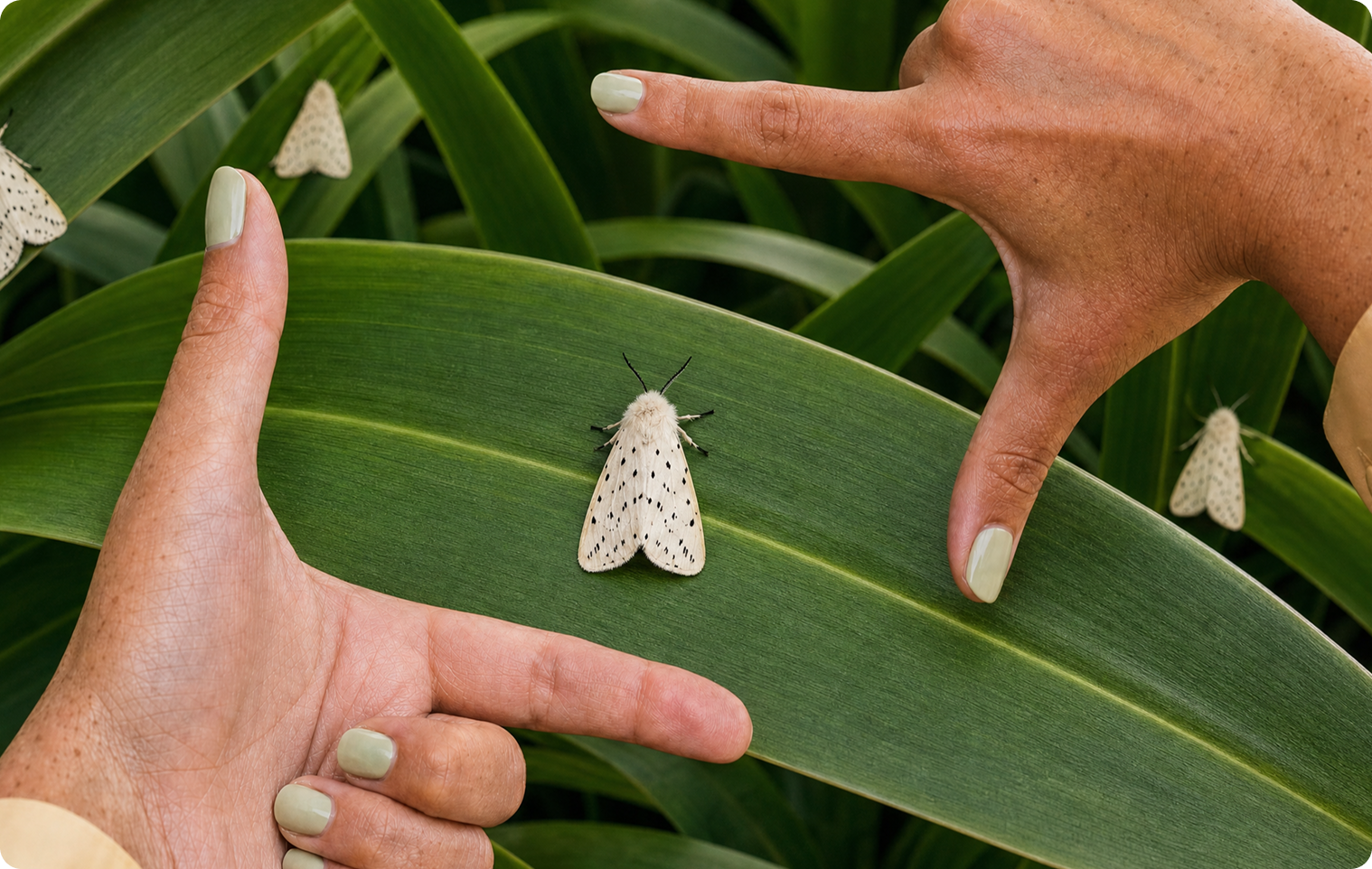
Image Studio
“Generate professional level imagery with maximum creative control.” Write a prompt, attach reference images and @mention them to say how each should be used.
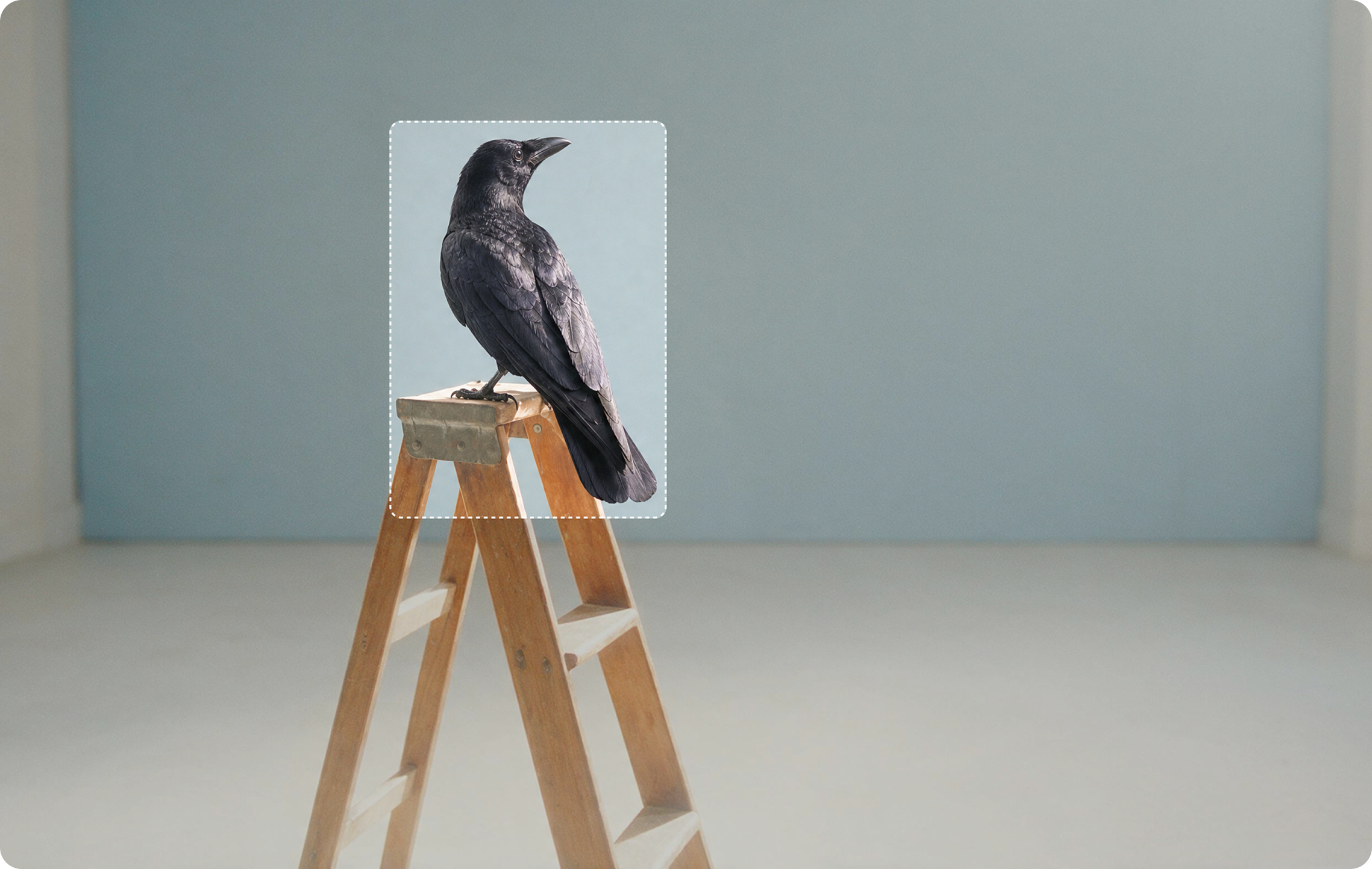
Edit Image
“Change any photo from a written instruction — or pin up to five exact spots and say what each one becomes.” Includes edit, expand and upscale modes, on Nano Banana 2. Accepts PNG, JPG and HEIC.
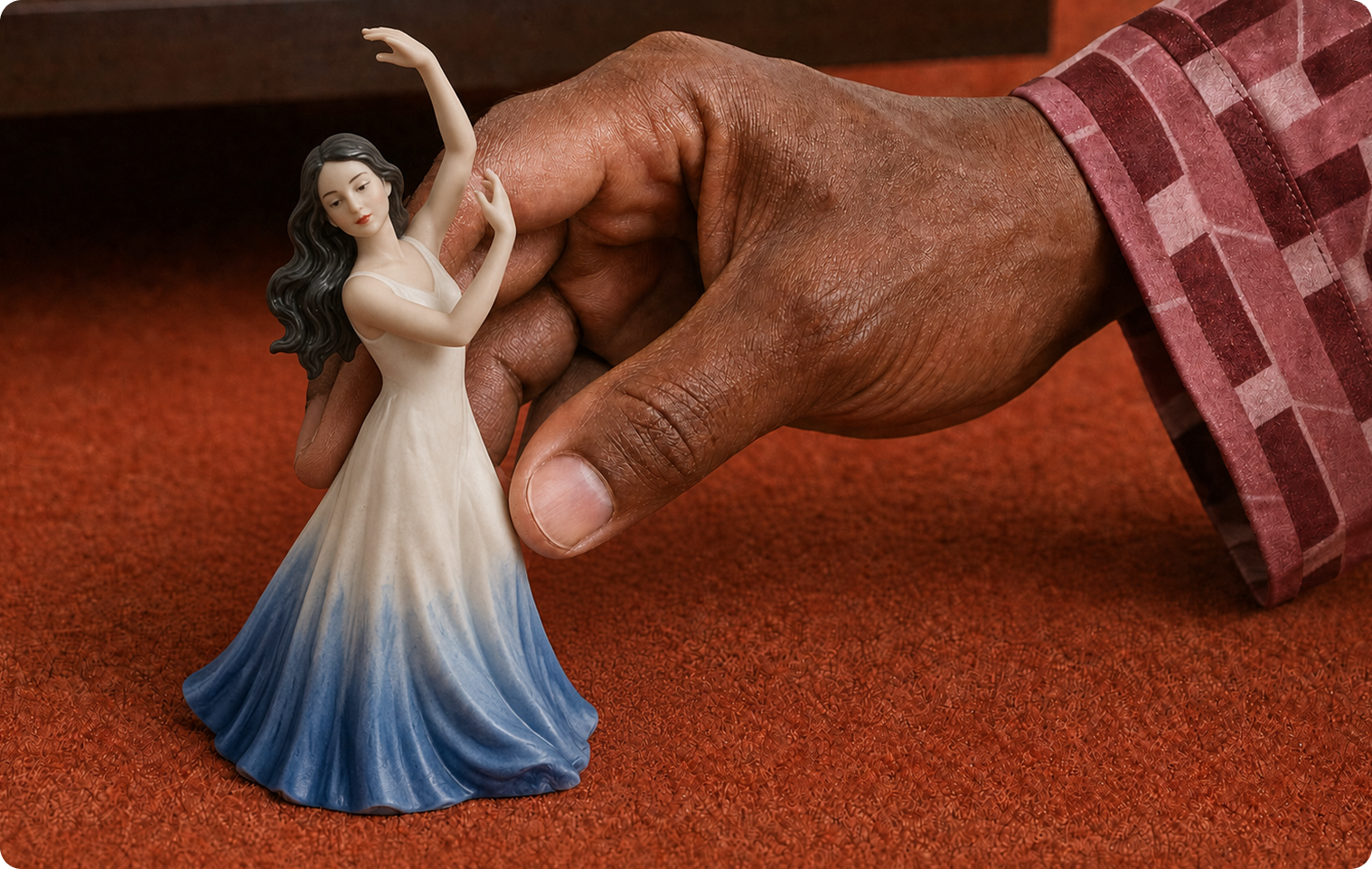
Character Studio
“Upload one photo and get that person back as a five-view character sheet — full body, 3/4 portrait, three expressions.” Choose a style (such as realistic, anime or claymation) and reuse the character in video, Short Film and Product Ad.
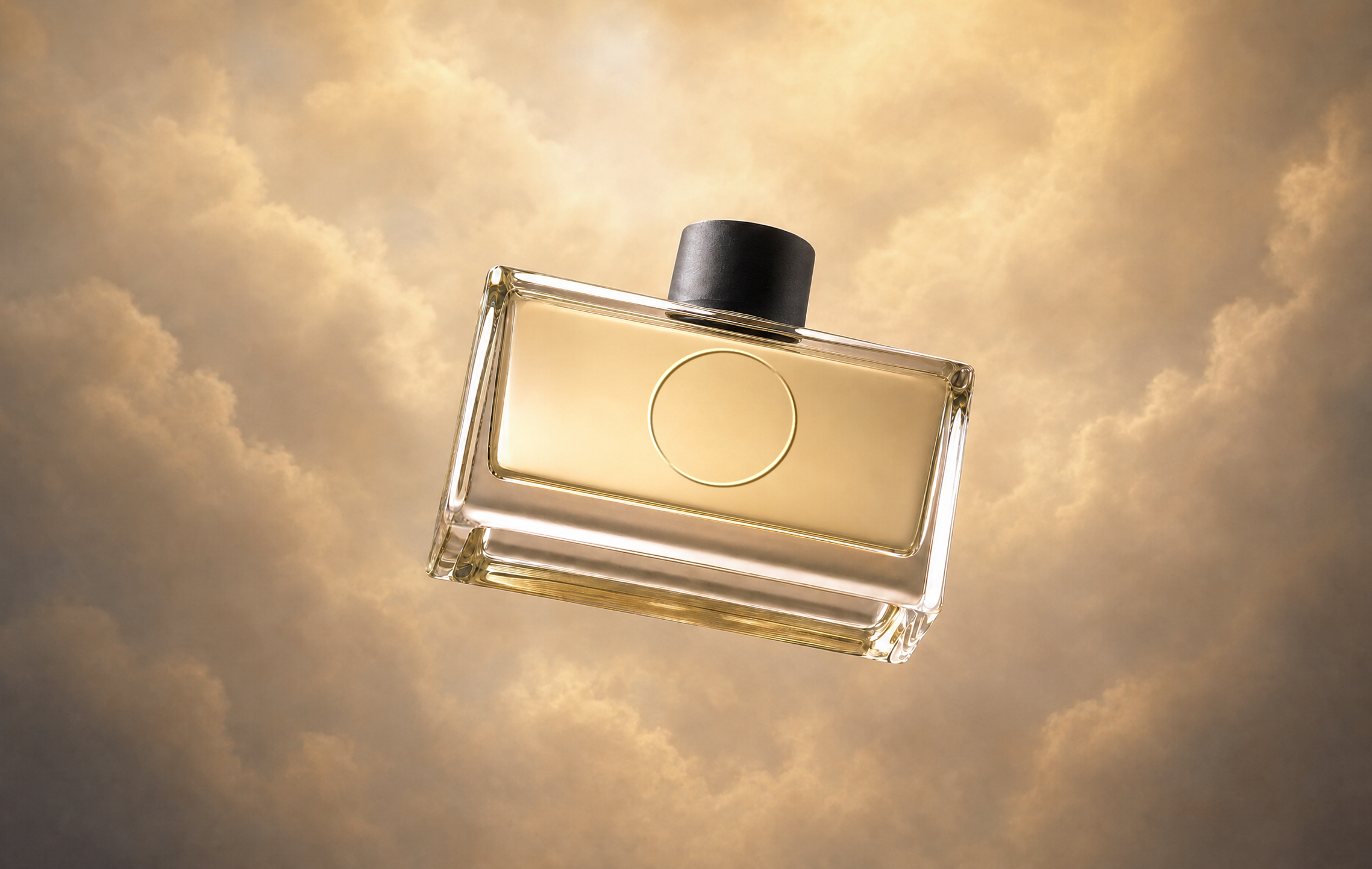
Product Shot
“Create styled images of your product without a photoshoot.” Works from any product photo, even a phone shot, with 24 preset styles such as Center Stage, Spotlit and Hard Light.
Related: Upscale for higher resolution, Relight Media for lighting, Color Grade for colour and mood, and Headshot Studio.
Image models available in Pika
| Model | Pika’s description | Resolution | References | Stand-out feature |
|---|---|---|---|---|
| GPT Image 2.5 | “OpenAI’s state-of-the-art image model” | Quality: Low, Medium, High, Auto | Up to 16 per edit | Readable text; transparent backgrounds (PNG/WebP) |
| Nano Banana | “Exceptional at creating and editing photo-real visuals” | Lite 1K; Nano Banana 2 0.5K–4K; Pro 1K–4K | Lite 14; Nano Banana 2 10; Pro 6 | 11 aspect ratios incl. 21:9; sharp, legible type |
| Seedream 5 | “Built for complex visual tasks” | Pro 1K–2K; Lite 2K–4K | Pro 10; Lite 14 | Infographics, precise edits, multilingual text |
| Seedream 4 | “Get it back at up to 4K, six takes at a time” | Up to 4K | Up to 10 | Six variations per prompt |
| Grok Imagine | Image 2.0 “lets you create and edit polished visuals” | Not listed | Not listed | Pairs with Imagine Video 1.5 to animate images |
Sources: Pika app pages for GPT Image 2.5, Nano Banana, Seedream 5, Seedream 4 and Grok Imagine, checked September 24, 2026. Tiers and limits change often; check the app. Prices aren’t listed on these pages and are shown in the app before you generate.
Which image model should you choose?
| If you need… | Start with |
|---|---|
| Headlines or fine print that read correctly | GPT Image 2.5 |
| A logo or product cut-out on a transparent background | GPT Image 2.5 |
| Photo-real images and edits | Nano Banana |
| Ultra-wide banners (21:9) | Nano Banana |
| Infographics or text in several languages | Seedream 5 |
| Lots of variations to choose from | Seedream 4 (six per prompt) |
| Images you’ll animate straight away | Grok Imagine (with Imagine Video 1.5), or any model then Video Studio |
Test your own prompt on two models before committing. Full comparison: Pika image models.
Image tutorials by goal
Image Studio
Prompts, references and settings for your first images.
Read the guide → EditImage editing
Swap, remove, restyle and expand parts of a photo.
Read the guide → CharactersCharacter Studio
Build a character sheet and reuse it everywhere.
Read the guide → ProductsProduct images
Styled product photos from a single shot.
Read the guide → PromptsImage prompts
Prompt ideas and structures for still images.
Browse prompts → ModelsImage models
GPT Image 2.5, Nano Banana, Seedream and Grok Imagine compared.
Compare models →From image to video
Pika’s image and video tools are designed to work together. A strong still image is often the best starting point for a video:
- Animate it with image-to-video in Video Studio.
- Make a transition between two to five images with Pikaframes.
- Cast a character from Character Studio in a short film or product ad.
- Make it dance with Motion Transfer.
See all video tools in the AI video hub.
A simple image workflow
- Pick the tool from the table above.
- Write a clear prompt: subject, setting, light, style, and any text in quotation marks.
- Attach references for faces, products or styles, and @mention them.
- Choose the aspect ratio for where the image will be used.
- Check the credit cost shown in the app, then generate.
- Refine with Edit Image rather than regenerating from scratch.
- Upscale the final image if it’s going to print or a large screen.
For plans and credits, see Pika pricing and is Pika AI free?
Pika AI image FAQs
Can Pika make images as well as videos?
Yes. Image Studio, Edit Image, Character Studio and Product Shot all create or edit still images, using models such as GPT Image 2.5, Nano Banana and Seedream.
Which Pika image model is best for text in images?
GPT Image 2.5’s page highlights “text that survives the render,” Nano Banana mentions “sharp, legible type,” and Seedream 5 lists “native multilingual text.” Test your own wording on each.
Can I get a transparent background?
Yes. GPT Image 2.5 offers a transparent background option that exports as PNG or WebP.
Can I use Pika images commercially?
Pika’s pricing page lists a commercial license on the Creator and Fancy plans. Check the current terms before using images in paid work.
Can I make a character from a photo of a real person?
Character Studio works from one photo of a person. Only use photos of people who have given permission, and follow Pika’s terms.
Is this the official Pika website?
No. pikaais.com is an independent informational guide. Generation, accounts and purchases take place on Pika’s official services.
Create your first image
Open Image Studio, write a four-part prompt (subject, setting, light, style), and generate. Then refine it with Edit Image.
Open Image Studio ↗Next: Image Studio · Image models · AI video hub
Sources: Pika, Pika app pages for Image Studio, Edit Image, Character Studio, Product Shot and the image models listed above, and Pika pricing, checked September 24, 2026. Images: Pika. Recommendations and workflow are our own.