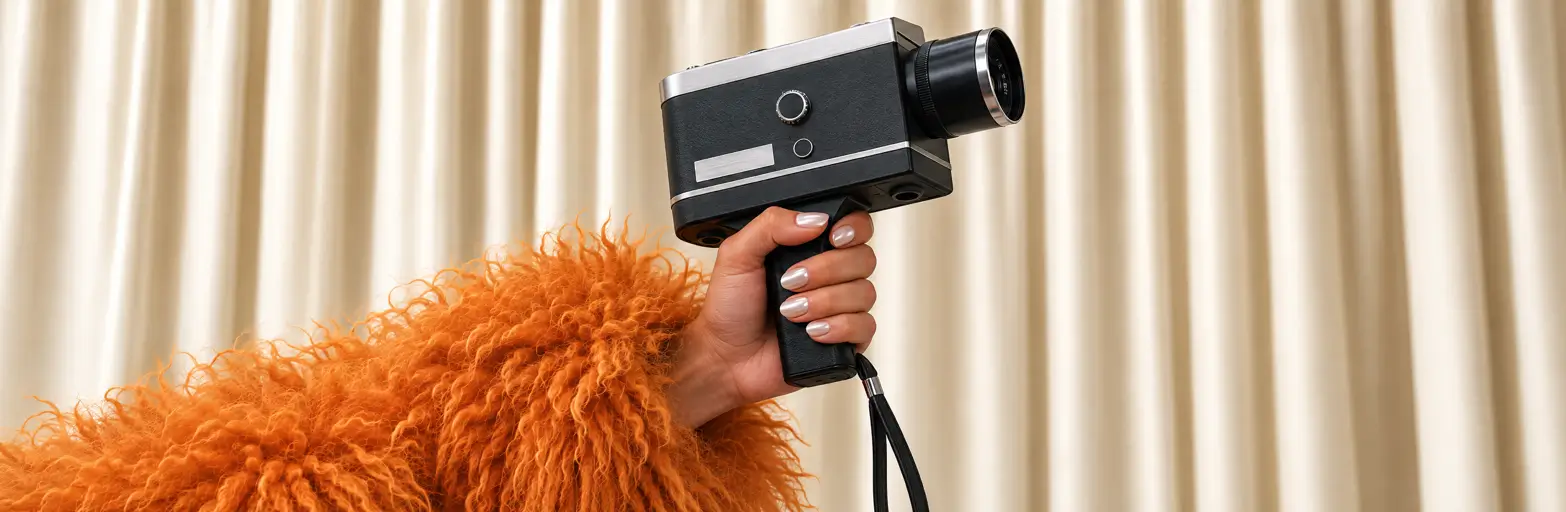
What is Create Video?
“Build an original video with maximum creative input. Attach up to 50 characters, products, settings, and styles, and @mention them in the prompt to specify how you want them used. Then describe what you want to happen, and generate anything from a short clip to a 3-minute multi-shot masterpiece—sound included.”
The app lives at create.pika.art/apps/create-video and is titled Video Studio. New to
it? Start with our beginner guide, Pika Video
Studio: Create Your First Video.
Source: Pika Video Studio (Create Video).
How long can videos be?
Pika’s own pages currently give two different answers:
| Page | Wording |
|---|---|
| Video Studio app page | “A short clip to a 3-minute multi-shot masterpiece” |
| Pika apps directory | “A short clip to a 30-second multi-shot masterpiece” |
One of these is likely out of date. Check the length options in the app itself before planning a long video, and remember that longer videos use more credits.
Attaching references
Pika says you can attach “up to 50 characters, products, settings, and styles.” What each type is for (our guidance):
Characters
People, mascots or creatures to keep consistent. Build them in Character Studio.
Products
Items whose shape and label must stay exact. Clean them up with Product Shot.
Settings
Locations: a café, a beach, a studio set.
Styles
A look to copy: film stock, illustration, colour palette.
- Clear, single-subject images make the best references.
- Only attach what the scene needs; 50 is a maximum, not a target.
- Use images you have rights to, and real people only with their express consent.
How @mentions work
After attaching references, you “@mention them in the prompt to specify how you want them used.” A simple pattern (ours):
@[character] does [action] in @[setting], in the style of @[style]. Keep @[character]’s face and outfit, and @[product]’s label, exactly as in the references.
- Give each reference one job: who, where, what product, what look.
- Mention a reference every time it matters, especially in multi-shot prompts.
- Use short, distinct names like
@miraand@cafe. - Say what must not change for characters and products.
@mention prompts to copy
Our own examples. Rename the @tags to match your references.
Character in a setting
@mira walks slowly through @market at dusk, stops at a lantern stall and smiles. Handheld follow shot, warm light, gentle crowd sound. Keep @mira’s face and yellow raincoat exactly as in the reference.
Product ad with a style
@bottle stands on a shelf in @bathroom as morning steam drifts past. Slow push-in, in the look of @softfilm. Keep @bottle’s label and colour exact. Soft ambient sound, no music.
Two characters, multi-shot
Shot 1: wide shot of @cafe on a rainy afternoon. Shot 2: @leo waves as @ava walks in. Shot 3: close-up of @ava laughing. Keep both characters consistent in every shot. Rain and café sounds.
Mascot explainer
@robo, a friendly robot mascot, rolls into @office and points at a whiteboard, then gives a thumbs up. Bright, playful style, static wide camera. Cheerful background music.
Example: three references, one scene

@mira.
@market.
@warmfilm.@mira walks slowly through @market at dusk, stops at a lantern stall and smiles. Handheld follow shot, in the look of @warmfilm. Keep @mira’s face and outfit exactly as in the reference. Gentle crowd sound.
Planning multi-shot videos
- Write a shot list: “Shot 1… Shot 2… Shot 3…” with one action each.
- Mix shot sizes: wide to set the scene, medium for action, close-up for emotion.
- Repeat your @mentions in every shot where a character or product appears.
- Keep one style reference for the whole video so shots match.
- Start short: test a 3-shot version before a long one.
For story-first films, the Short Film app writes the script and storyboard for you.
Sound
Pika says videos come with “sound included.” Describe the sound you want in the prompt (ambience, music style, no music). To replace or refine it afterwards, use Pika Soundtrack, or add a voiceover with Pika Speech.
Create Video FAQs
Is Create Video the same as Video Studio?
Yes. The app at create.pika.art/apps/create-video is titled Video Studio.
How many references can I attach?
Pika says “up to 50 characters, products, settings, and styles.”
How long can a video be?
The app page says up to “3-minute,” while the apps directory says “30-second.” Check the app for current options.
Does it make sound?
Pika says videos come with “sound included.”
Is this the official Pika website?
No. pikaais.com is an independent informational guide.
Make a three-reference scene
Attach a character, a setting and a style, @mention all three, and generate a short clip.
Open Video Studio ↗Next: Beginner’s guide · Character Studio · All Pika apps
Sources: Pika Video Studio and Pika apps, checked September 25, 2026. Images: Pika. Prompts and tips are our own.