
Where video quality comes from
“Quality” covers several different things: sharpness, stable motion, consistent subjects, good light and colour. Each one is controlled at a different stage, so the fix depends on which one is failing.
Finishing tools can make a good clip look great, but they can’t fix a subject that morphs or motion that breaks. Those have to be fixed at stages 1 and 2.
Diagnose the problem first
| What you see | Stage | Fix |
|---|---|---|
| Soft, blurry or low resolution | Finishing | Upscale the keeper |
| Flat, dull or badly lit | Finishing | Relight, then Color Grade |
| Colours off or clips don’t match | Finishing | Color Grade with one reference |
| Subject morphs or changes identity | Inputs / generation | Add a reference, slow the motion, shorten the clip |
| Hands, faces or limbs look wrong | Inputs / generation | Simpler action, wider shot, try another model |
| Jittery or wandering camera | Inputs | One clear camera instruction, or “camera static” |
| Prompt details ignored | Inputs | Shorter prompt, key detail first |
| Garbled text or logos | Inputs | “No text”; add titles in an editor |
| Clip ends too soon or awkwardly | Finishing | Extend Video or trim |
Fix it at the source: before you generate
Write a clearer prompt
One subject, one action, one camera move, and a named light source. Put the most important detail in the first sentence. See the text-to-video guide for the six-part prompt builder.
Use better references
For image-to-video and consistent characters, the reference image sets the ceiling. Use a sharp, well-lit image with space around the subject and no text. Improve weak references first with image editing or Upscale, which also works on images.
Choose the model deliberately
Models differ in motion quality, prompt-following and cost. Draft cheaply, then re-run the prompt you like on a higher-quality model. Pika’s pricing page lists a 720p, 5-second clip at 33 credits on Wan 3.0 and 122 on Seedance 2.5. Compare options in the video models guide.
Keep clips short
The longer a single generation runs, the more room it has to drift. Generate short clips that hold together, then lengthen the best with Extend Video.
Make motion gentle
Slow, subtle motion is more stable than fast action. “Drifts,” “sways” and “slowly turns” hold up better than “spins,” “jumps” or “explodes.”
Upscale: sharper, higher resolution
Pika’s Upscale app will “take any image or video to a higher resolution.” You upload something like “a small file” or “a low-res export” and “get back a larger, sharper version of the same image or footage.”
- Upscale last, after you’ve chosen the final take, to avoid spending credits on clips you won’t use.
- Upscale before posting to large screens or full-screen vertical feeds, where softness shows most.
- Check fine detail after upscaling: hair, text, foliage and edges.
- Upscaling doesn’t fix motion. A clip that morphs will still morph, just more sharply.
Pika’s app page doesn’t list output resolutions or prices for Upscale; check the options and cost shown in the app. See also our Upscale app page.
Relight: fix flat or wrong lighting
Pika’s Relight Media app promises “the lighting you wanted on set, without going back to set.” It “rebuilds” light and shadow on a photo or video while keeping “your subject, framing, and motion” the same.
| Preset | Use it when |
|---|---|
| Golden Hour | A scene looks cold or midday-harsh and should feel warm |
| Softbox | Products or portraits need even, flattering light |
| Hard Flash | You want a bold, editorial or fashion look |
| Window | Interiors need soft, natural side light |
| Neon Night | A city or nightlife scene needs colour and mood |
| Moonlight | A scene should read as night-time |
| Back Light | The subject needs separation from the background |
| Spotlight | One subject should stand out dramatically |
The app also lets you set lighting manually or describe it. Relight changes the light; for overall colour and mood afterwards, use Color Grade. See our Relight Media app page.
Color, length and cleanup
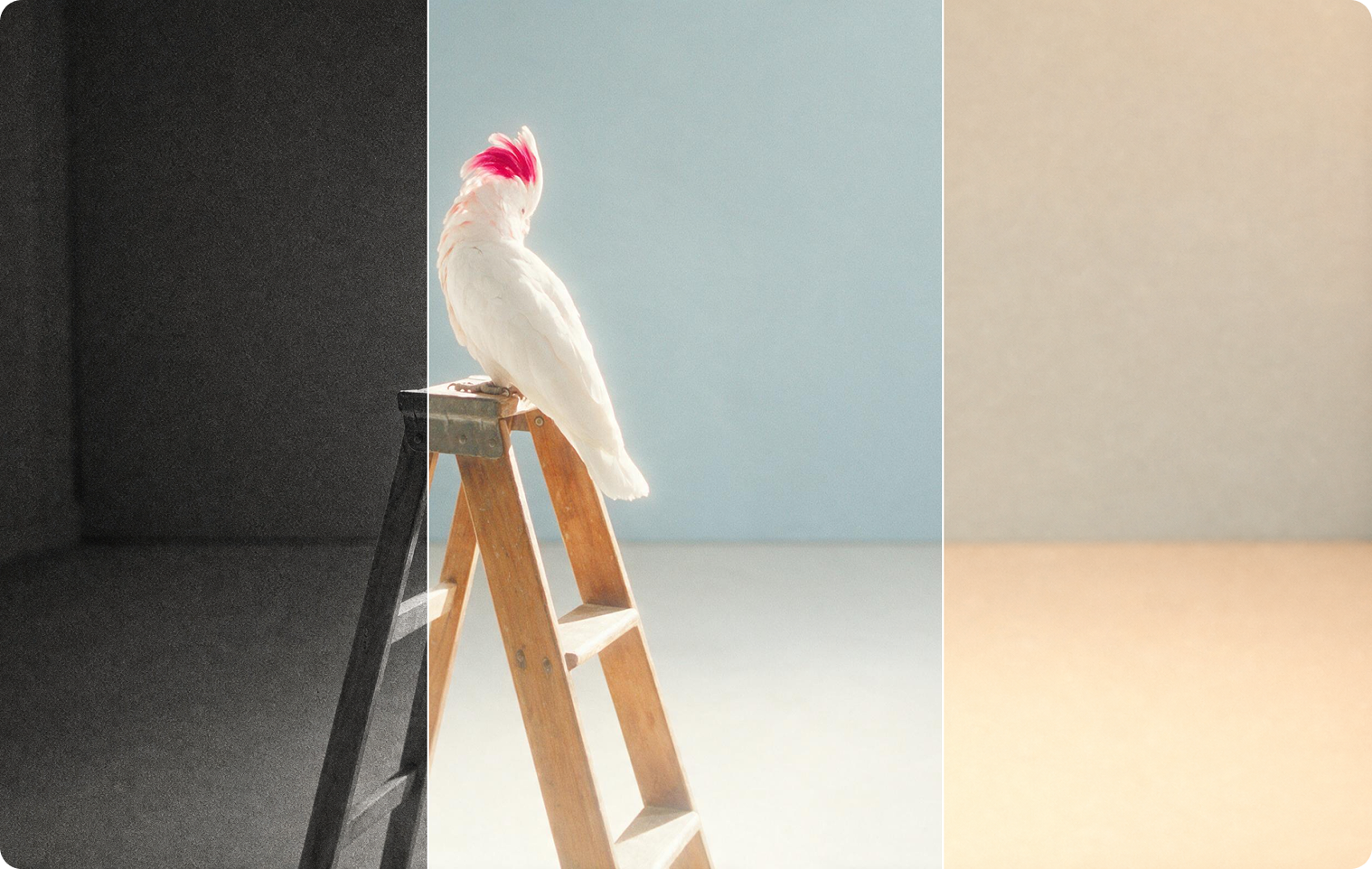
Color Grade
Adjust colour, contrast and mood, and make clips from different models match. See the Color Grade guide for mood recipes.
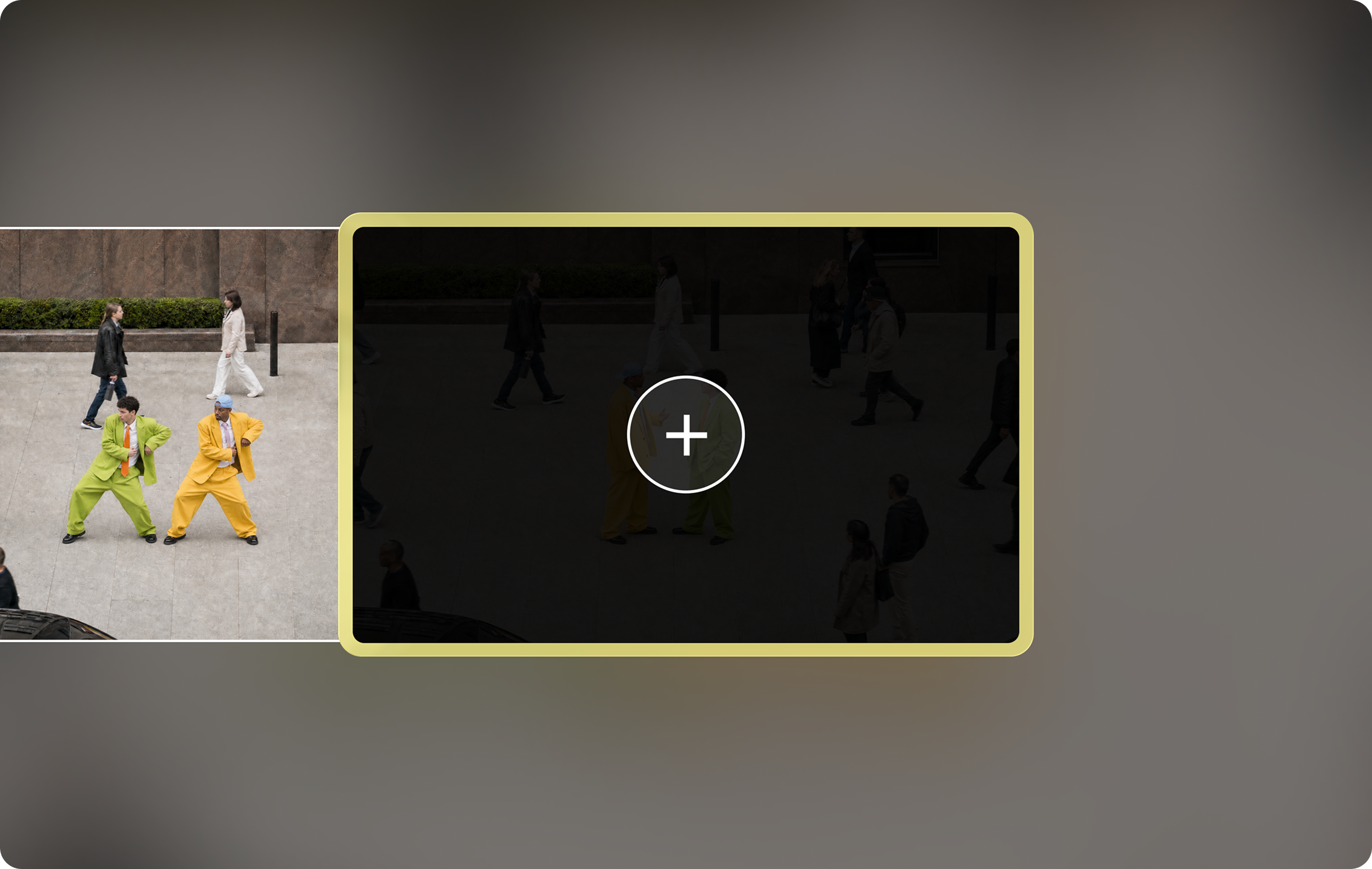
Extend and trim
Trim away weak frames at the start and end, and extend a good clip instead of regenerating a longer one.
For individual objects that look wrong, Swap Anything can replace an element; for sound quality, see Pika AI audio.
The best finishing order
- Pick the take. Compare attempts and choose the one with the best motion.
- Trim and extend. Settle the final length first.
- Relight if the lighting itself is wrong.
- Color Grade for the overall look and to match other clips.
- Upscale the finished clip.
- Add sound, text and titles in your editor.
- Export at the size the platform expects.
Why this order? Length changes come first so every later step works on the final footage. Upscaling comes near the end so you only pay to upscale what you publish. Check the result after each step, and change the order if a tool works better on a particular clip.
Before and after examples
Each example lists the problem, the fix and what to compare. The projects are our own ideas.
Soft draft to sharp final
Compare: hair, edges and background texture.
Flat product to studio light
Compare: highlights and shadows on the product.
Mismatched clips to one look
Compare: skies, shadows and skin tones across clips.
Morphing face to stable character
Compare: the face in the first and last frames.
Poster images: Pika. Example projects are our own.
Quality checklist before publishing
Picture
- Subject looks the same from first frame to last.
- Hands, faces and edges hold up when paused.
- No garbled text, logos or signs.
- Sharp enough at full screen on a phone.
- Colour matches the rest of the project.
Delivery
- No jump at extension joins or cuts.
- Sound matches the picture and has no clicks.
- Right aspect ratio and size for the platform.
- AI disclosure added where the platform requires it.
- Your plan’s license covers how you’ll use it.
Still stuck? See troubleshooting or our broader Pika quality overview.
Video quality FAQs
Why does my Pika video look blurry?
Drafts are often generated at a base resolution, and fast motion adds blur. Choose the best take, then use Upscale for a sharper, higher-resolution version.
Can upscaling fix a face that changes?
No. Upscaling adds sharpness, not consistency. Fix identity drift with a character reference, gentler motion and shorter clips, then upscale.
Which Pika model gives the best quality?
It depends on the scene. Run the same prompt on two or three models and compare; the models guide explains the options.
Can I improve videos not made with Pika?
Yes. Upscale, Relight Media and Color Grade all accept uploaded footage, provided you have the rights to it.
How much do the finishing tools cost?
Pika’s app pages don’t list fixed prices; each app shows the cost before you generate. See Pika pricing.
Is this the official Pika website?
No. pikaais.com is an independent informational guide. Generation, accounts and purchases take place on Pika’s official services.
Finish one clip properly
Pick your best take, trim it, grade it, upscale it, and compare the result side by side with the original.
Open Upscale ↗Next: Color Grade · Extend Video · All AI video guides
Sources: Pika Upscale, Pika Relight Media, Pika Color Grade and Pika pricing, checked September 24, 2026. Images: Pika. Diagnosis table, workflow and checklist are our own.