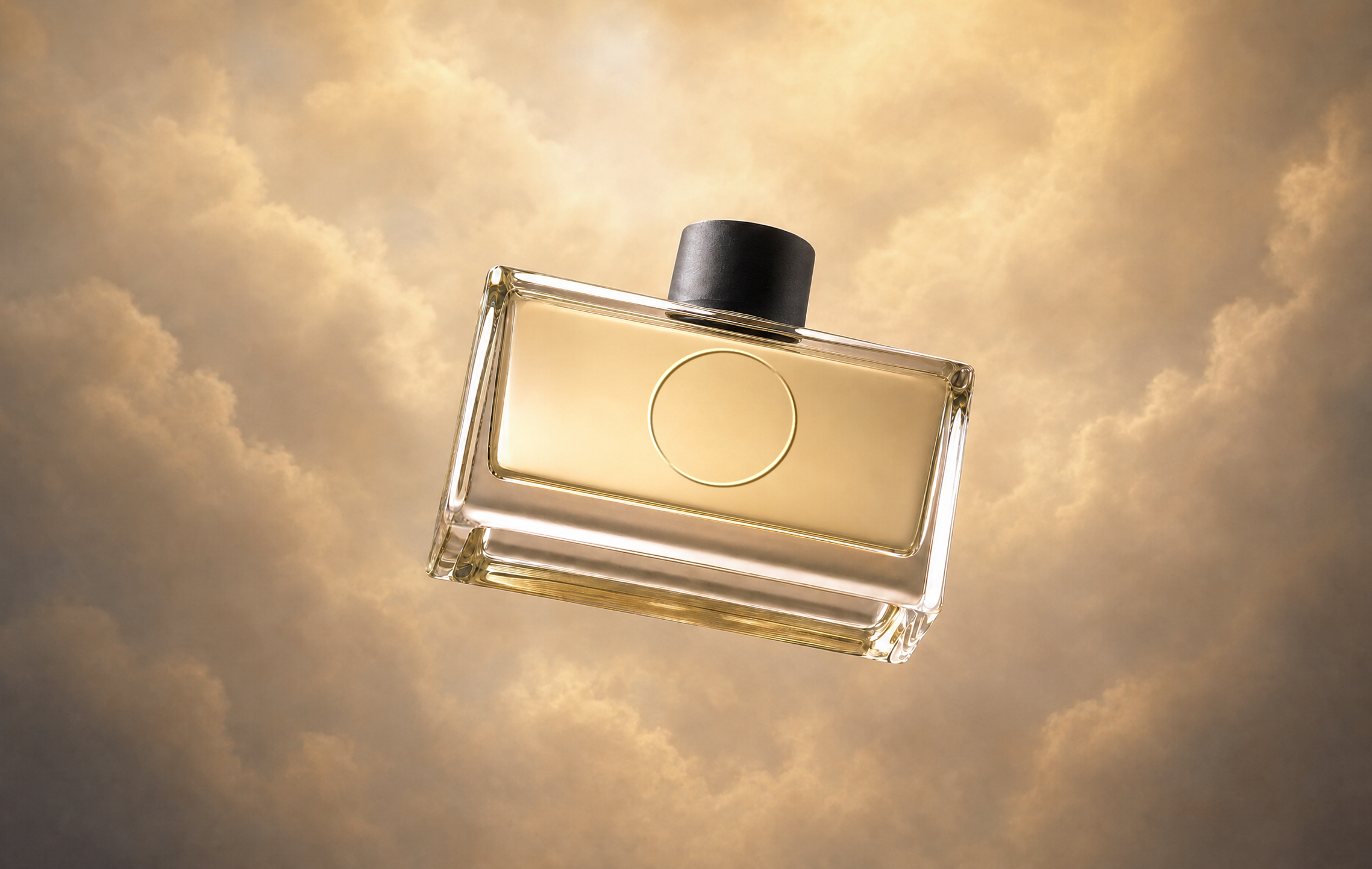
What is Pika Product Shot?
“Give your product an entire shoot’s worth of professional images, without hiring a photographer. Pika Product Shot takes any product image you provide—even something shot on your phone—and gives it studio-grade lighting, styling, and finish.”
On Pika’s apps page it’s a Featured App: “Create styled images of your product without a photoshoot.” Pika doesn’t list style presets, output sizes or credit costs on the app’s page; the app shows them.
For a full product photography playbook (shot types a store needs, lifestyle prompts, marketplace tips), see our Pika product photography guide.
Sources: Product Shot and Pika apps.
Product Shot at a glance
| Input | “Any product image you provide—even something shot on your phone” |
|---|---|
| Output | Images with “studio-grade lighting, styling, and finish” |
| Promise | “An entire shoot’s worth of professional images” |
| Best for | Online stores, marketplaces, social ads, launches (our suggestion) |
| Commercial use | Pika lists a commercial license on Creator, Fancy and Enterprise plans |
| Cost | Shown in the app before you generate; see Pika pricing |
What to upload
- One product, clearly visible, filling most of the frame.
- Sharp focus on the label and edges; wipe off dust and fingerprints.
- Soft, even light: a window on a cloudy day works well.
- Plain background: a white sheet or wall helps the app separate the product.
- Straight-on or slight angle that shows the label as customers will see it.
- No hands, price stickers or clutter unless you want them in the result.
Pika says even a phone photo works; these tips (ours) help the app keep your product accurate.
Quick steps
- Open Product Shot and sign in.
- Upload your product photo.
- Choose a look or describe the scene, if the app asks (for example “white marble, soft morning light”).
- Check the credit cost, then generate.
- Zoom in: check the label, logo, colour and shape against the real product.
- Download the best images, or try another style for a set.
Before and after examples
Everyday phone photos run through Product Shot, then animated with image-to-video.
Example 1 · Skincare jar


Example 2 · Sneaker


Example 3 · Coffee bag


From product shot to product video
Slow orbit to the right, soft light moving across the label. Keep the product shape, colour and label exactly the same.
9:16. Gentle push-in, a few water drops slide down the product, steam drifts behind. Product stays perfectly still.
How to animate your own: Pika image-to-video · product ads.
Product Shot vs Pika’s other image tools
| Tool | Pika’s description | Use it when |
|---|---|---|
| Product Shot | “Create styled images of your product without a photoshoot.” | You want fast, polished shots from one photo |
| Image Studio | “Generate professional level imagery with maximum creative control.” | You want full control over scene and style |
| GPT Image 2.5 | “OpenAI’s image model for high-quality images and editing, plus transparency.” | You need edits or a transparent background |
| Nano Banana | “Google’s image model with 3 modes from Lite to Pro, covering sketch to final.” | You want to iterate from rough to final |
| Relight Media | “Relight any photo or video” | The shot is right but the lighting isn’t |
Plan a full “shoot” in one session
To get “an entire shoot’s worth” of images, plan a set before you start (our checklist):
| Image | Style to ask for | Where it’s used |
|---|---|---|
| Hero packshot | Clean, white or light grey, soft shadow | Main listing image |
| Lifestyle | In use or in a real setting | Gallery, social posts |
| Mood | Dramatic light, brand colours | Ads, banners |
| Seasonal | Holiday or summer props | Campaigns |
| Vertical | 9:16 with space for text | Stories, Reels |
Check each marketplace’s image rules (for example, background requirements) before uploading.
Common problems and fixes
| Problem | Try |
|---|---|
| Label text changes or blurs | Upload a sharper, straight-on photo; regenerate; fix small text in an editor |
| Colour looks different | Shoot in neutral daylight; compare against the real product |
| Shape or size looks wrong | Use a photo without lens distortion (step back, zoom in slightly) |
| Background cut-out is messy | Plain background in the original photo |
| Too similar across images | Change setting, light and props for each image |
Always check results against the real product: customers and marketplaces expect images to be accurate. More: Pika not working?
Product Shot FAQs
Can I use a phone photo?
Yes. Pika says Product Shot takes “any product image you provide—even something shot on your phone.”
Can I sell with these images?
Pika’s pricing page lists a commercial license on Creator, Fancy and Enterprise, not on Free or Starter.
How is this different from your product photography guide?
This page is a quick app walkthrough with examples. The product photography guide covers shot types, prompts and store requirements in depth.
Can I turn the images into videos?
Yes. Use a Product Shot image as the start frame in image-to-video, and describe only the motion.
Is this the official Pika website?
No. pikaais.com is an independent informational guide.
Shoot one product today
Take a phone photo in window light, upload it, and make a hero shot and a lifestyle shot.
Open Product Shot ↗Next: Product photography guide · Product ads · All Pika apps
Sources: Pika Product Shot, Pika apps and Pika pricing, checked September 24, 2026. Images: Pika. Tips, set plan and fixes are our own.